作者: George Curta ·
企业集成指南
将 anonym.legal 与 Claude Enterprise 集成
面向 Claude Enterprise 工作区管理员和用户的分步指南 — 包含屏幕截图、权限模型和验证方法。
https://anonym.legal/mcp身份验证:DCR + OAuth概述
B 部分 — 最终用户设置
1. 概述与前提条件
anonym.legal 提供了一个 MCP (Model Context Protocol) 服务器,用于检测、令牌化和还原文本中的个人数据 (PII)。连接到 Claude Enterprise 后,Claude 可以在向第三方发送内容之前遮盖 PII,按需还原原始值,并跟踪成本 / 配额。
各方职责
- 管理员为整个工作区注册连接器,设置全组织范围的权限上限,并控制 Cowork 门控。此处的任何操作都不会影响某个特定用户的凭据。
- 用户通过 OAuth 为自己的 Claude 账户授权连接器,并在管理员上限内选择按工具的偏好 (Always allow / Ask / Blocked)。
所需条件
- 一个 Claude Enterprise 工作区 (本指南适用于任何 Enterprise 租户)。
- A 部分需要 Claude 中的管理员角色。
- 一个 anonym.legal 账户,用于 OAuth 握手 (用户在连接过程中会看到登录窗口)。
- MCP 服务器 URL: https://anonym.legal/mcp。
A 部分
管理员配置
A 部分的所有操作均在 /admin-settings/* 下进行,需要管理员角色。这些步骤会影响组织中的每一位成员。
2. 管理员 — 添加自定义连接器
Claude 附带一个第一方及合作伙伴连接器目录,但 anonym.legal 需要作为自定义 Web 连接器添加。请从 https://claude.ai/admin-settings/connectors 开始。
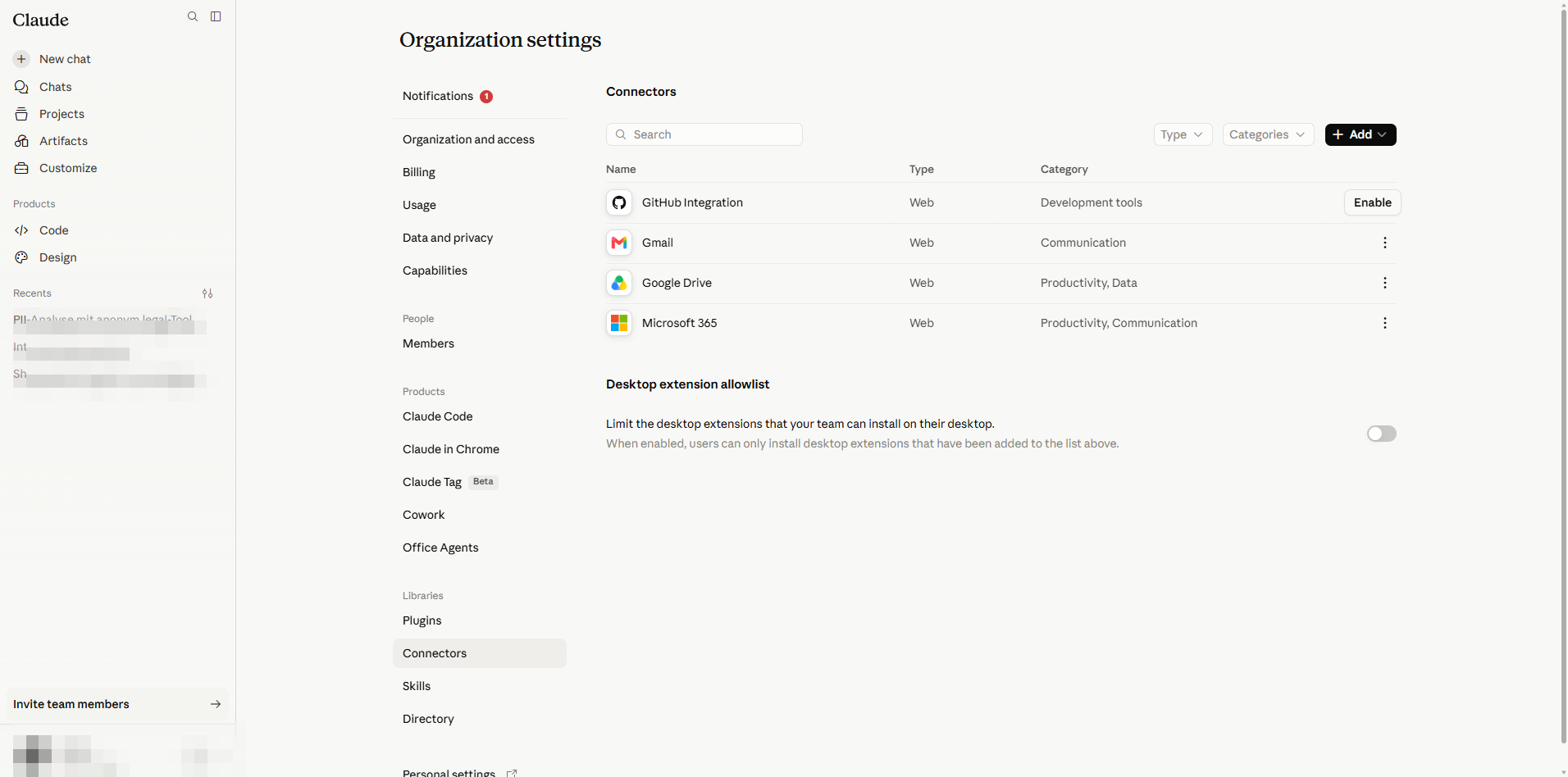
- 1
点击 Add connector。菜单显示两个选项:All available (精选目录) 和 Custom。
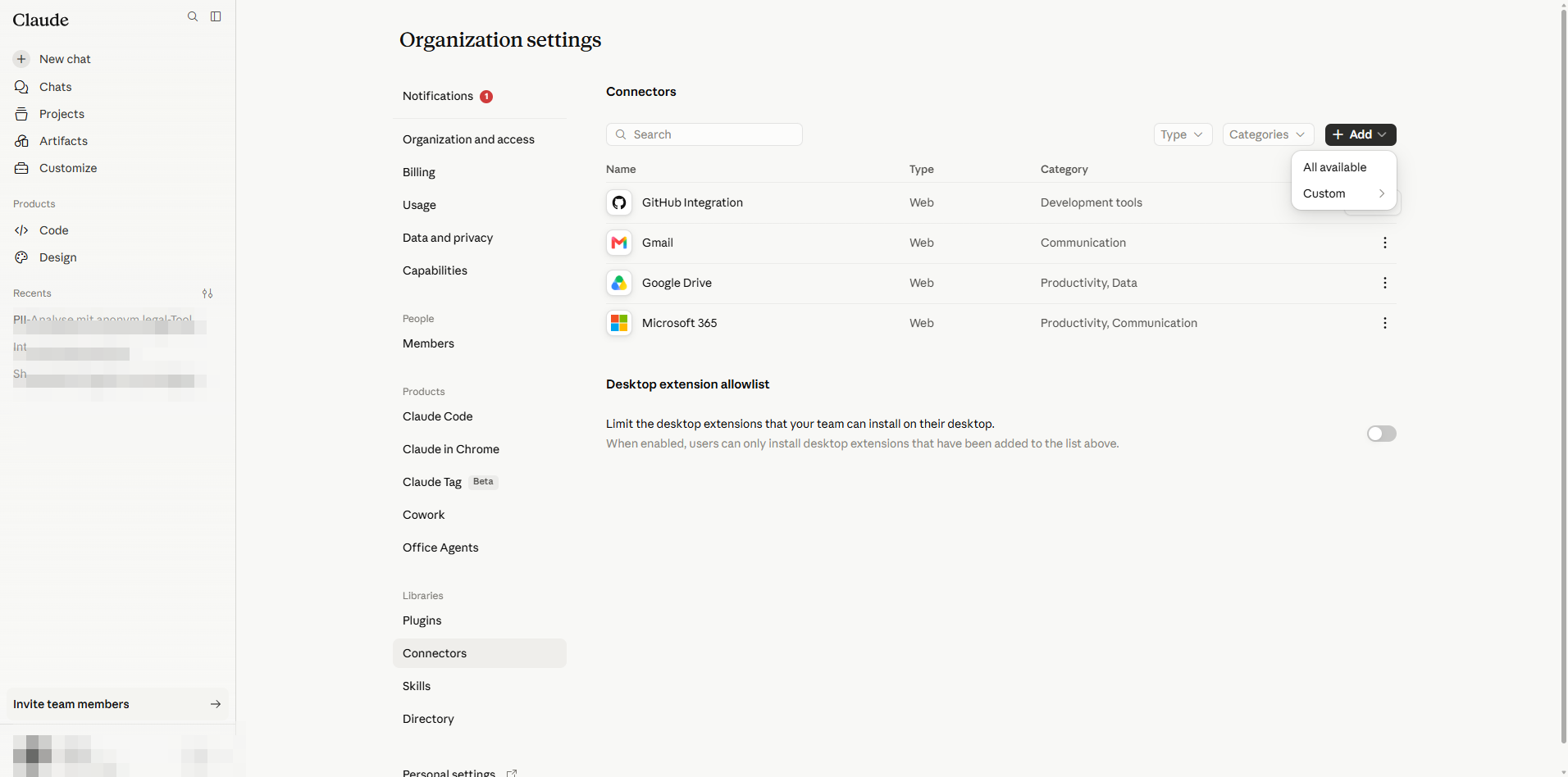
添加连接器菜单:为任意 MCP 服务器选择 Custom。 - 2
将鼠标悬停在 Custom 上,子菜单会提供 Web 或 Desktop。anonym.legal 是托管的 MCP 端点,因此选择 Web。
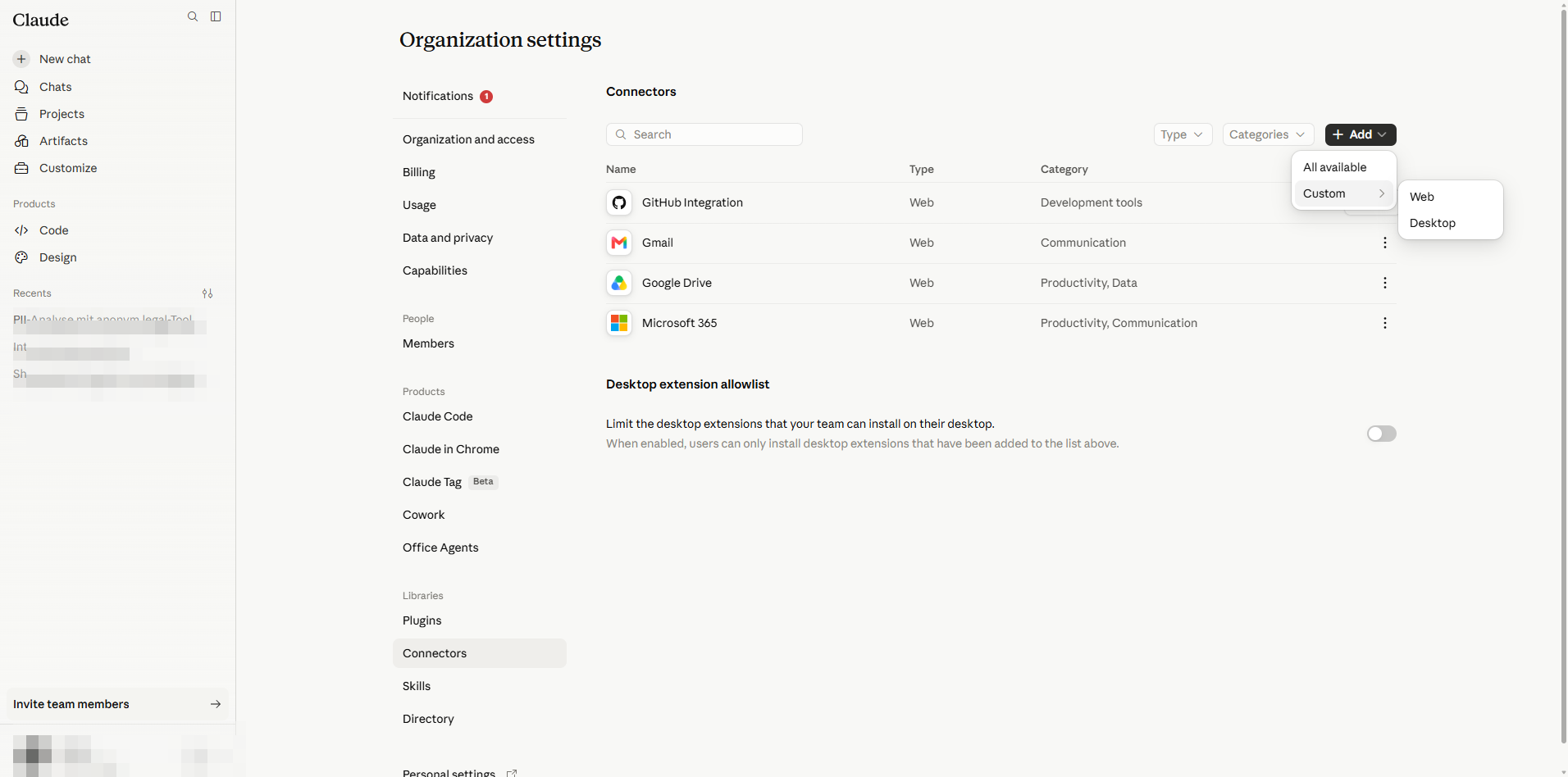
远程 MCP 服务器请选择 Web;Desktop 用于本地托管的服务器。 - 3
Add custom connector 对话框将打开 (当前为 BETA)。
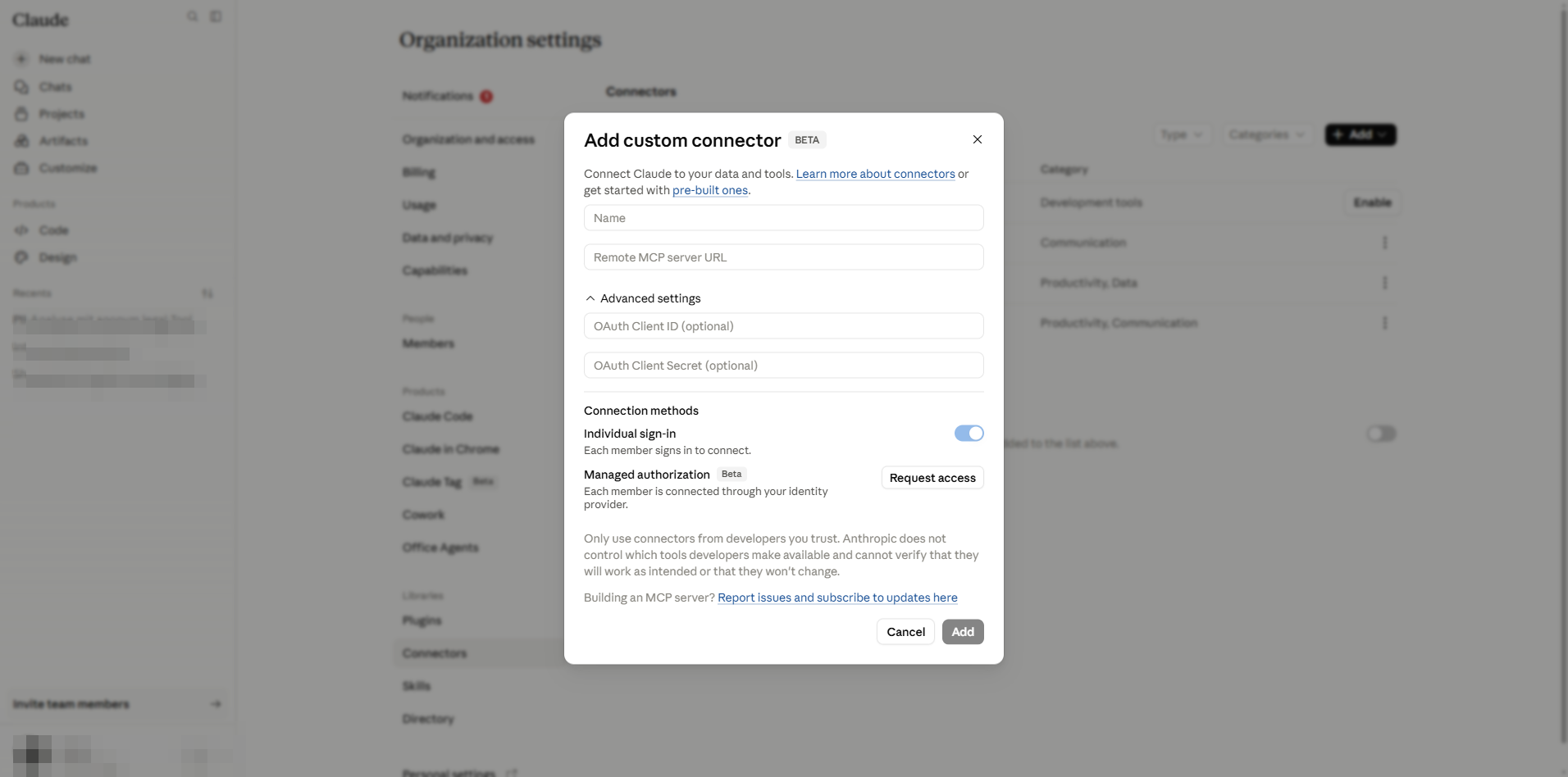
空白对话框。字段:名称、远程 MCP 服务器 URL、可选的 OAuth Client ID/Secret、授权方法。 - 4
填写字段:
- Name: anonym.legal (在聊天和设置中向用户显示)。
- Remote MCP server URL: https://anonym.legal/mcp。
- OAuth Client ID 和 Client Secret 留空。anonym.legal 支持 Dynamic Client Registration (DCR),因此 Claude 会自动协商客户端凭据。仅当 MCP 提供商不支持 DCR 时才需要填写这些字段。
- 保持选中 Individual sign-in (默认)。每位用户使用自己的 anonym.legal 账户进行授权。
- 除非您的租户在 enterprise-managed-auth 候补名单中,否则 Managed authorization (Beta) 选项处于禁用状态;托管模式下,贵组织将集中持有令牌,而不是由每位用户各自持有。
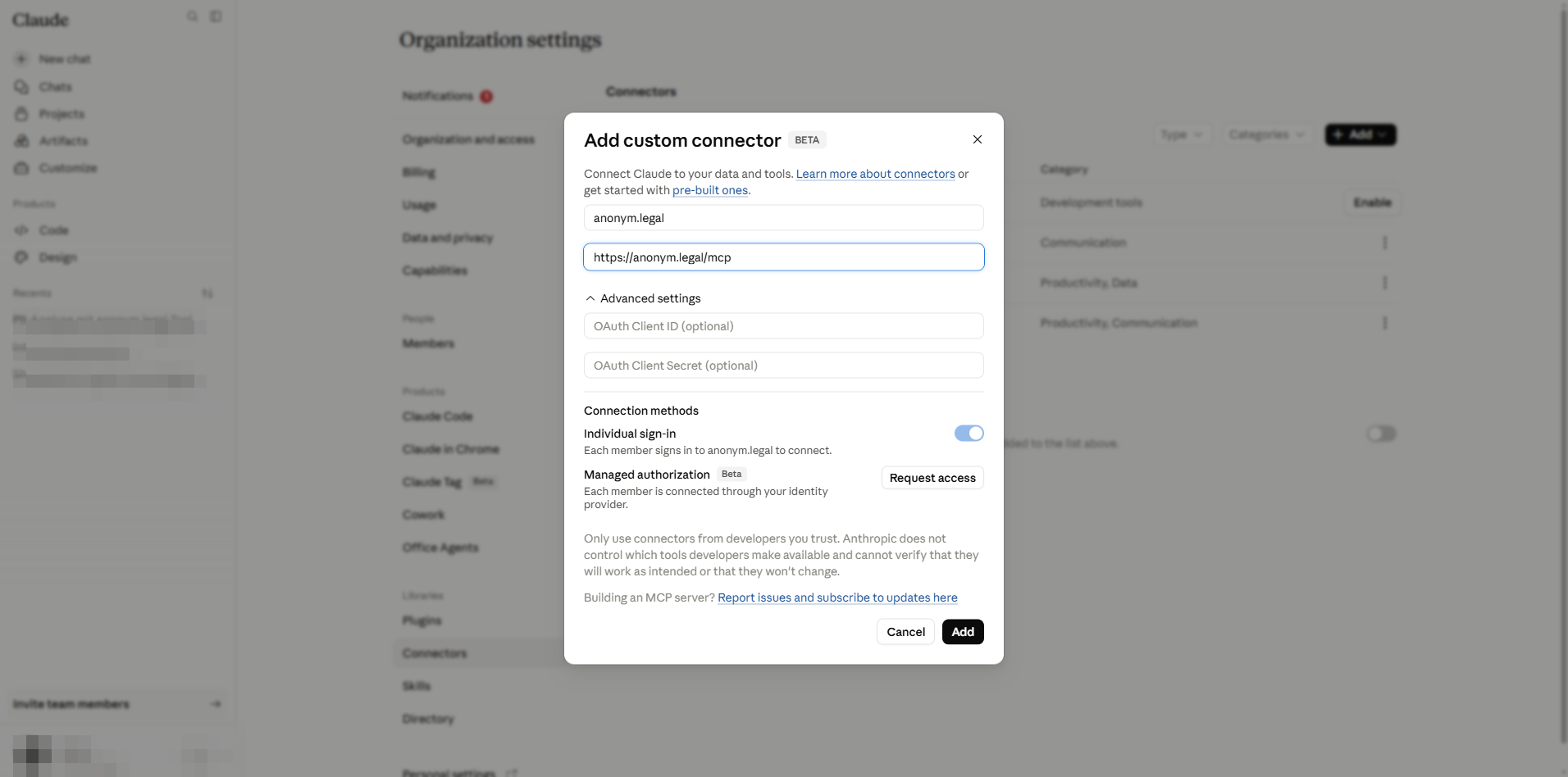
已填写好的对话框。警告:请仅启用来自可信开发者的连接器 — 恶意服务器可能通过工具响应注入指令 ("提示注入")。 - 5
点击 Add。连接器随即出现在 Connectors 列表中。用户此时还不能使用它 — 每位用户必须完成 B 部分的流程。
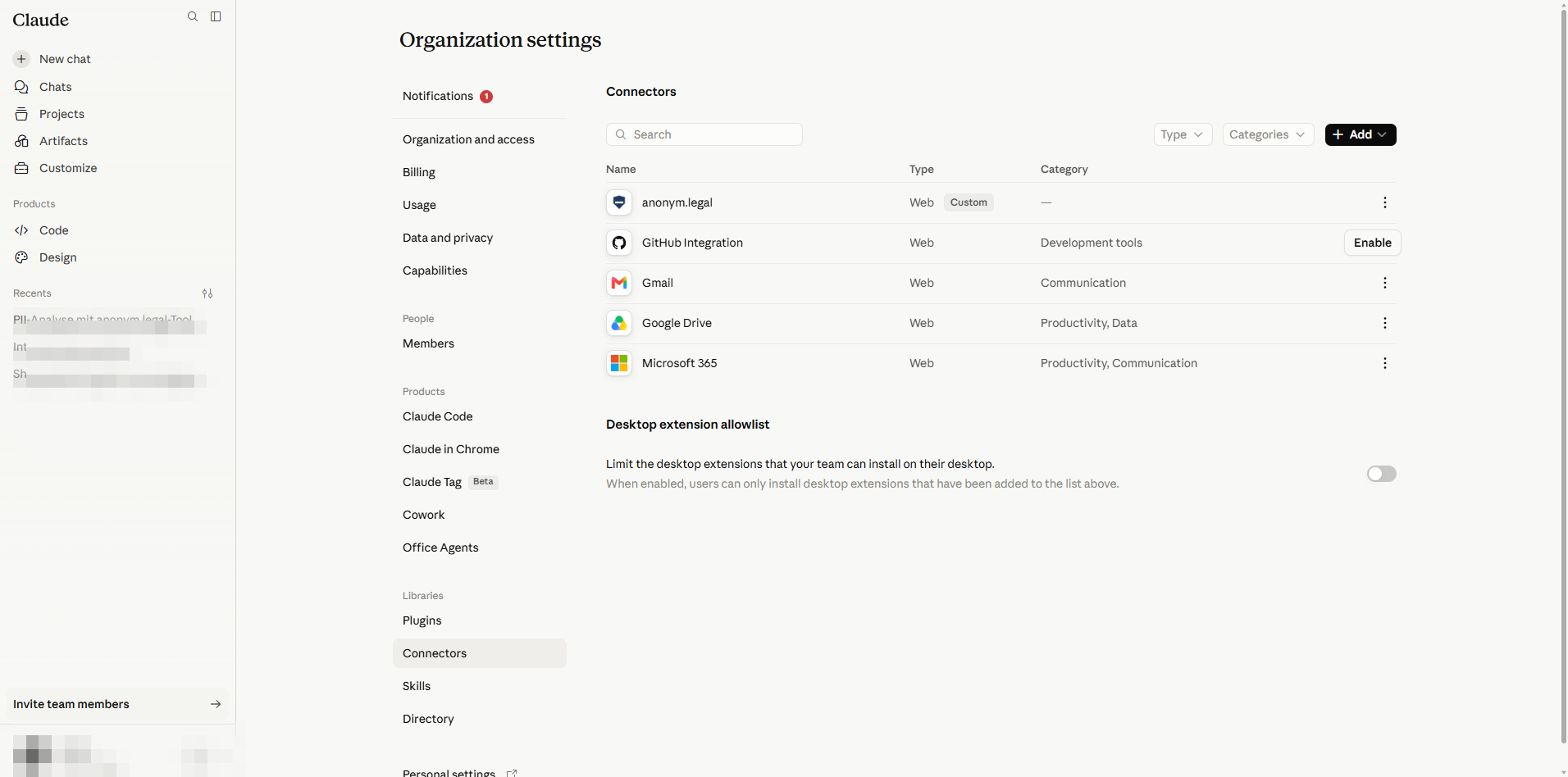
已注册。组织中的任何人现在都可以从自己的 Customize 页面启用它。
3. 管理员 — 配置工具权限上限
点击 anonym.legal 行以打开其详细信息。管理员的权限选择构成上限:单个用户的设置可以与之相同或更严格,但绝不能更宽松。
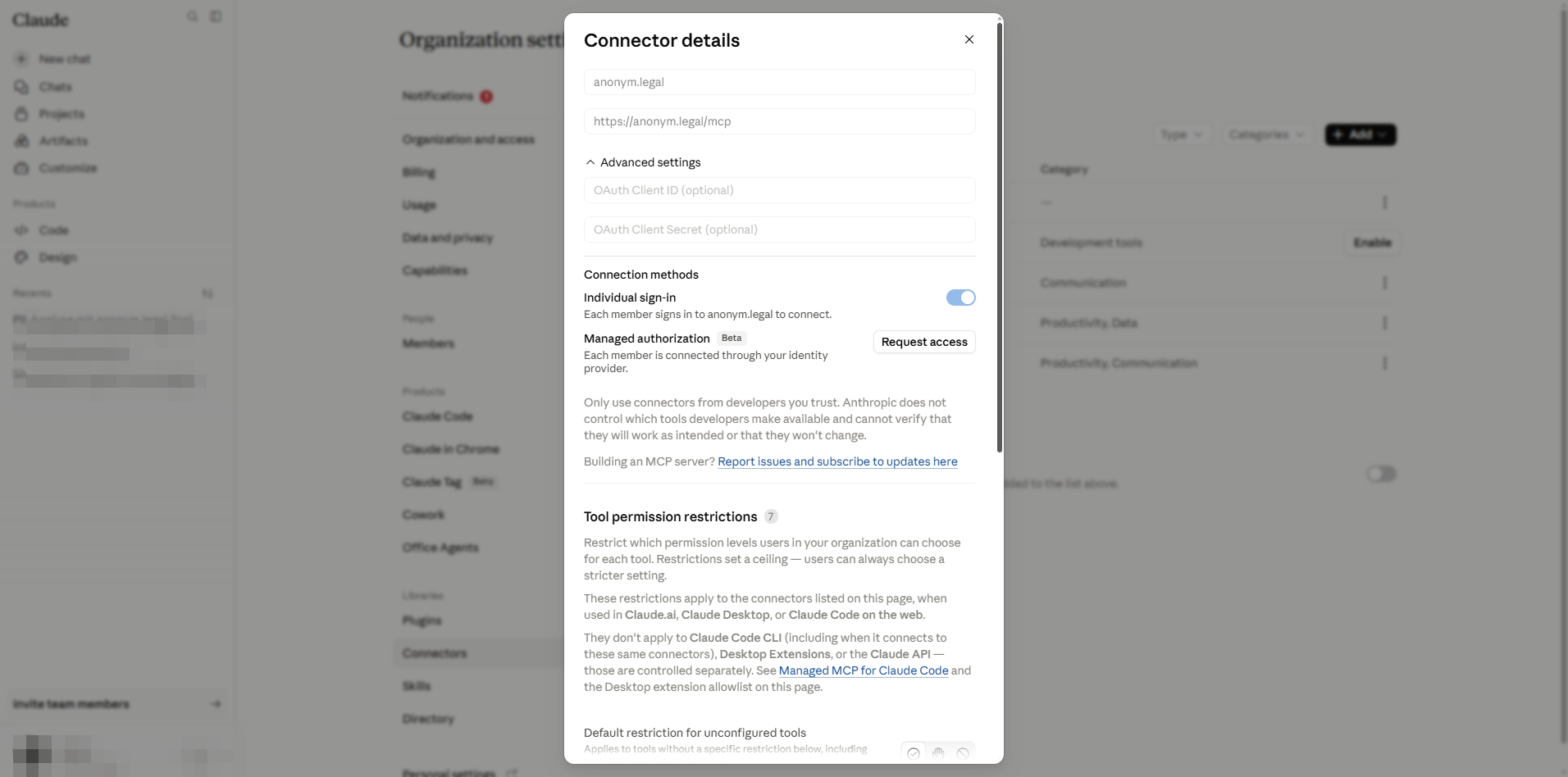
未配置工具的默认限制
第一个控件决定当 anonym.legal 引入尚未在此列出的新工具时会发生什么。选择 Blocked 可获得最安全的姿态;现有已配置的工具不受影响。
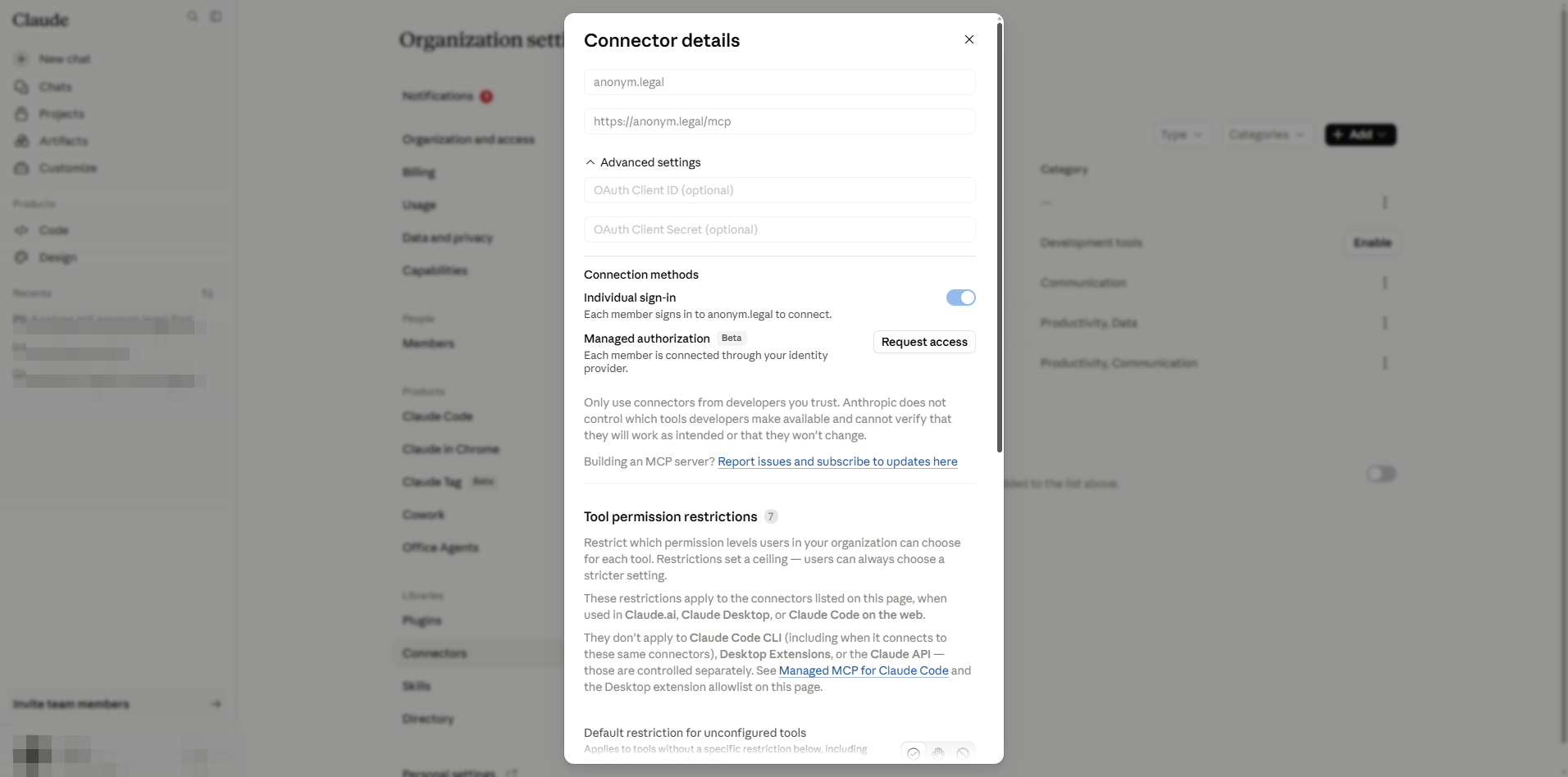
只读工具
这些工具调用 anonym.legal 但不会改变提供商侧的状态。在本次部署中,所有六个都设为 Always allow,以便最终用户可以无阻碍地调用它们。
- Analyze Text for PII — 检测文本样本中的 PII 实体。
- Detokenize Text — 使用会话令牌还原匿名化。
- Estimate Operation Cost — 在实际调用之前进行干运行定价。
- Get Token Balance — 账户的剩余配额。
- List Tokenization Sessions — 该用户创建的会话。
- List Presets — 列出可用于传递给其他工具的内置、个人和公开匿名化预设。
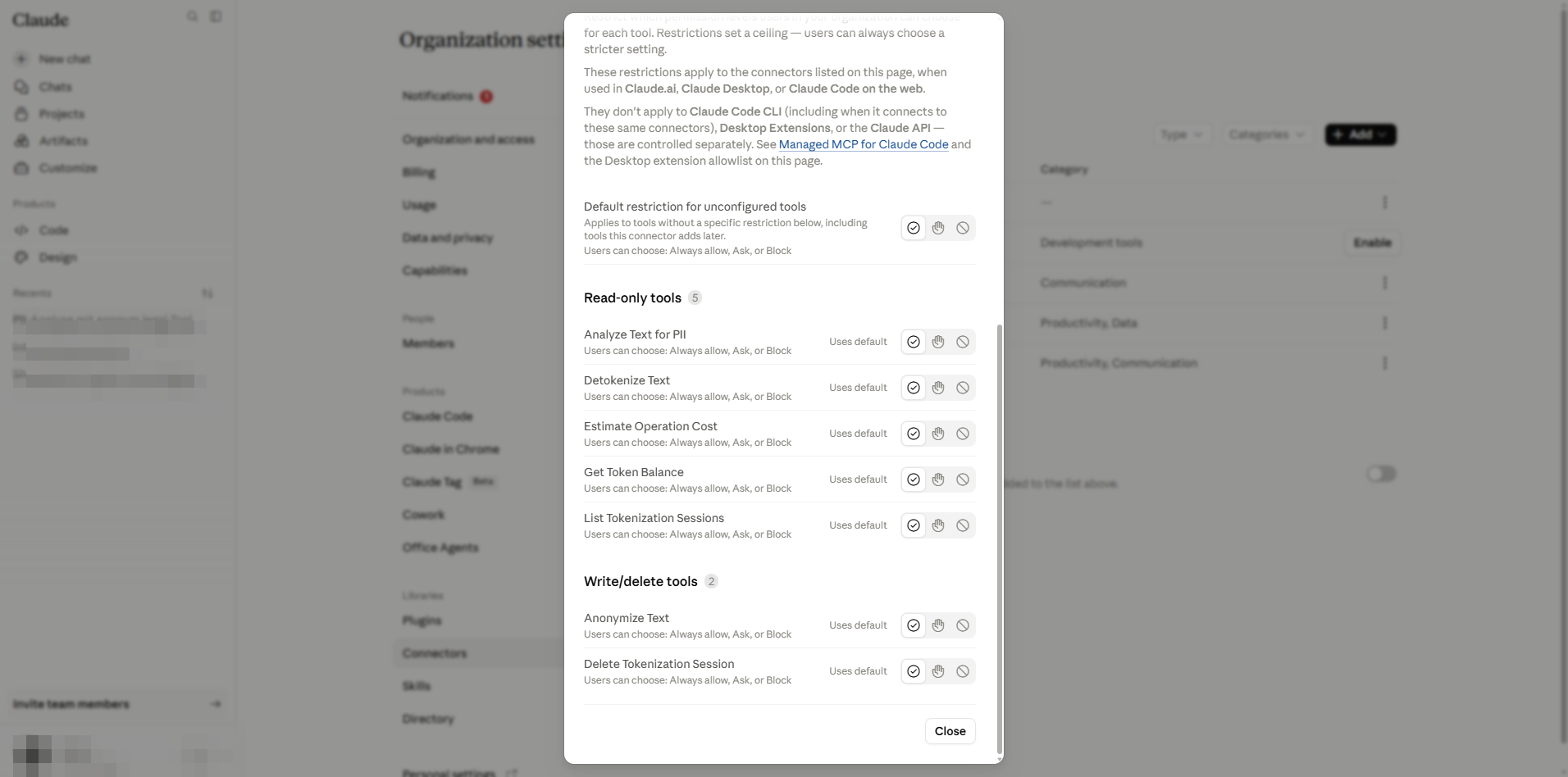
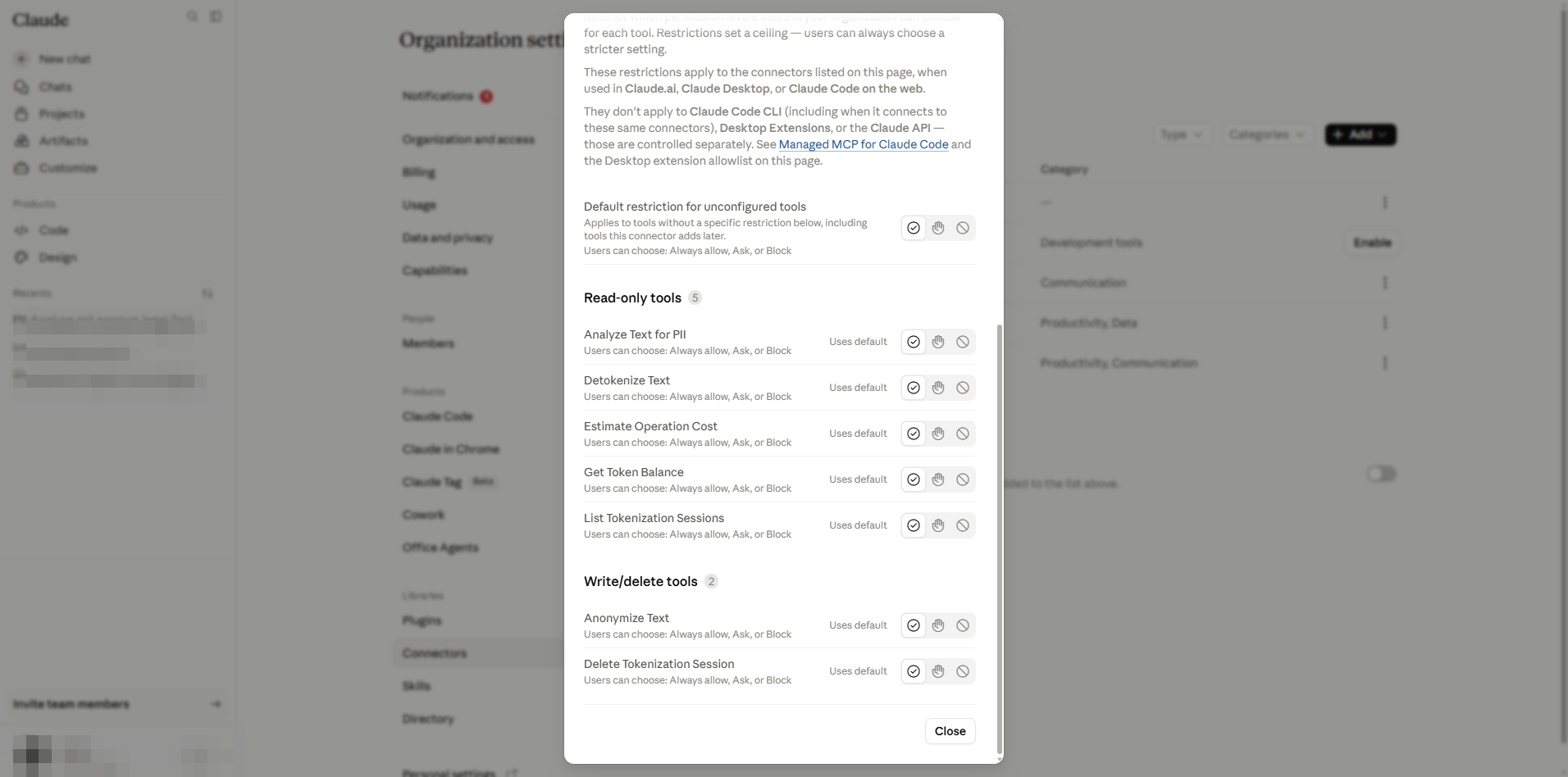
写入 / 删除工具
这些工具会在 anonym.legal 上创建或销毁状态 (令牌化会话或其记录)。您的组织允许使用它们,但敏感租户可以强制使用 Approval required,以便 Claude 在每次调用前向用户请求确认。
- Anonymize Text — 用可逆令牌替换 PII (创建令牌化会话)。
- Delete Tokenization Session — 不可逆地删除会话及其令牌。
- Redact PII in Image — 基于 OCR 的检测,对 PNG/JPEG 图像中的 PII 进行涂黑或分析(消耗 token;需启用图像涂黑功能)。
4. 管理员 — 用于 "Always allow" 的 Cowork 门控
独立于按工具的权限表,Claude 的 Cowork / 代理设置决定连接器工具是否可以使用 "Always allow" 层级。请导航到 https://claude.ai/admin-settings/cowork。
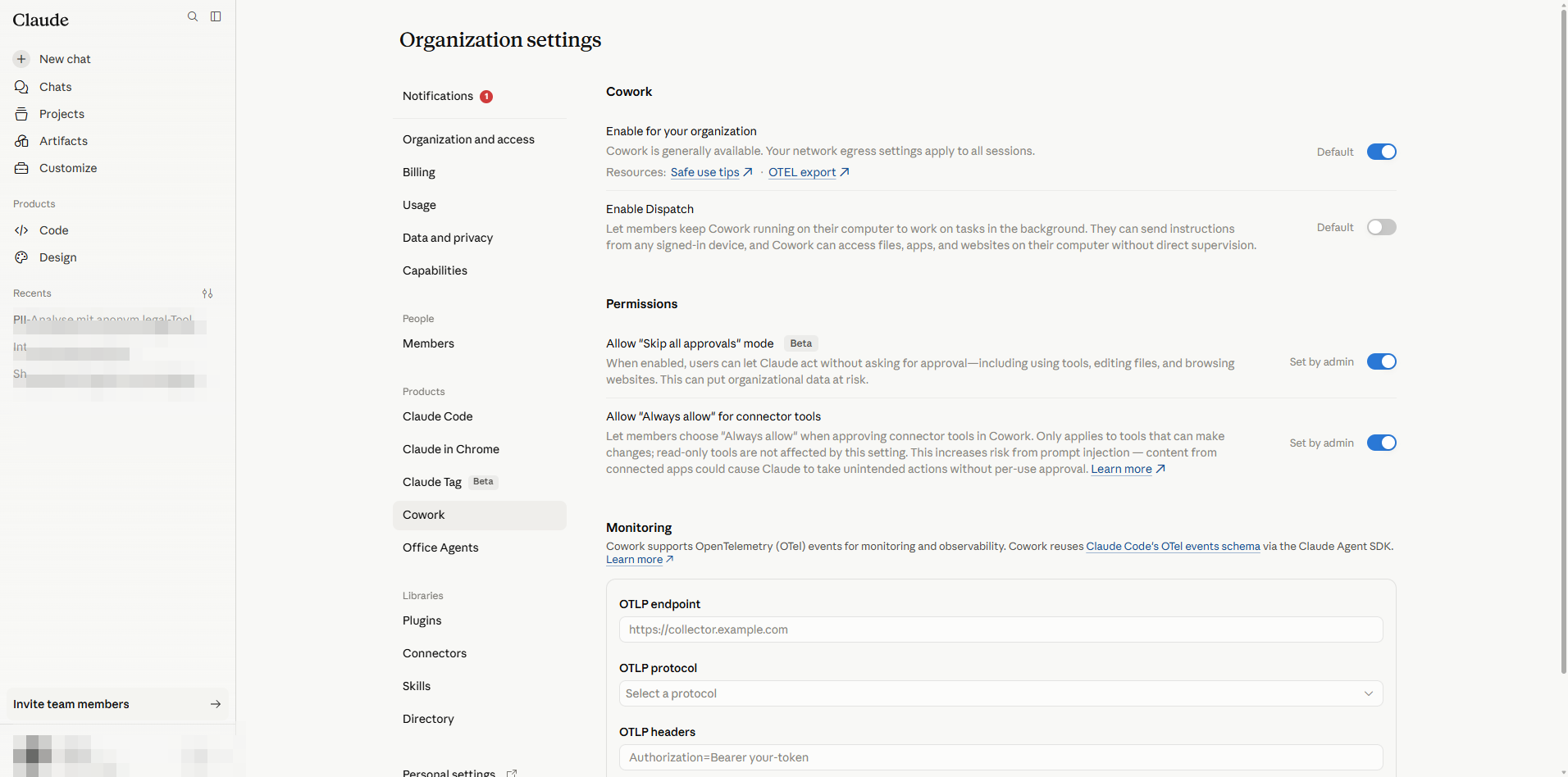
- Enable for your organization — 连接器要以代理方式运行,此项必须开启。
- Enable Dispatch — 控制 Dispatch 功能;与连接器权限无关。
- Allow "Skip all approvals" mode (Beta) — 危险:用户会获得一个一键开关来绕过所有确认提示。对于受监管的工作负载,请关闭。
- Allow "Always allow" for connector tools — 关闭时,用户无法保存 "Always allow" 偏好;即使是只读工具也只能获得 "Ask each time" 体验。开启时,用户仍受按工具管理员上限的限制。
5. 管理员 — 重置 / 移除连接器
当连接器需要重新干净安装时使用这些步骤 (例如更改传输 URL、轮换客户端凭据或停用集成)。移除是全组织范围的操作,会使每位用户的 OAuth 授权失效。
- 1
在 https://claude.ai/admin-settings/connectors 打开管理员 Connectors 表。找到 anonym.legal 行。
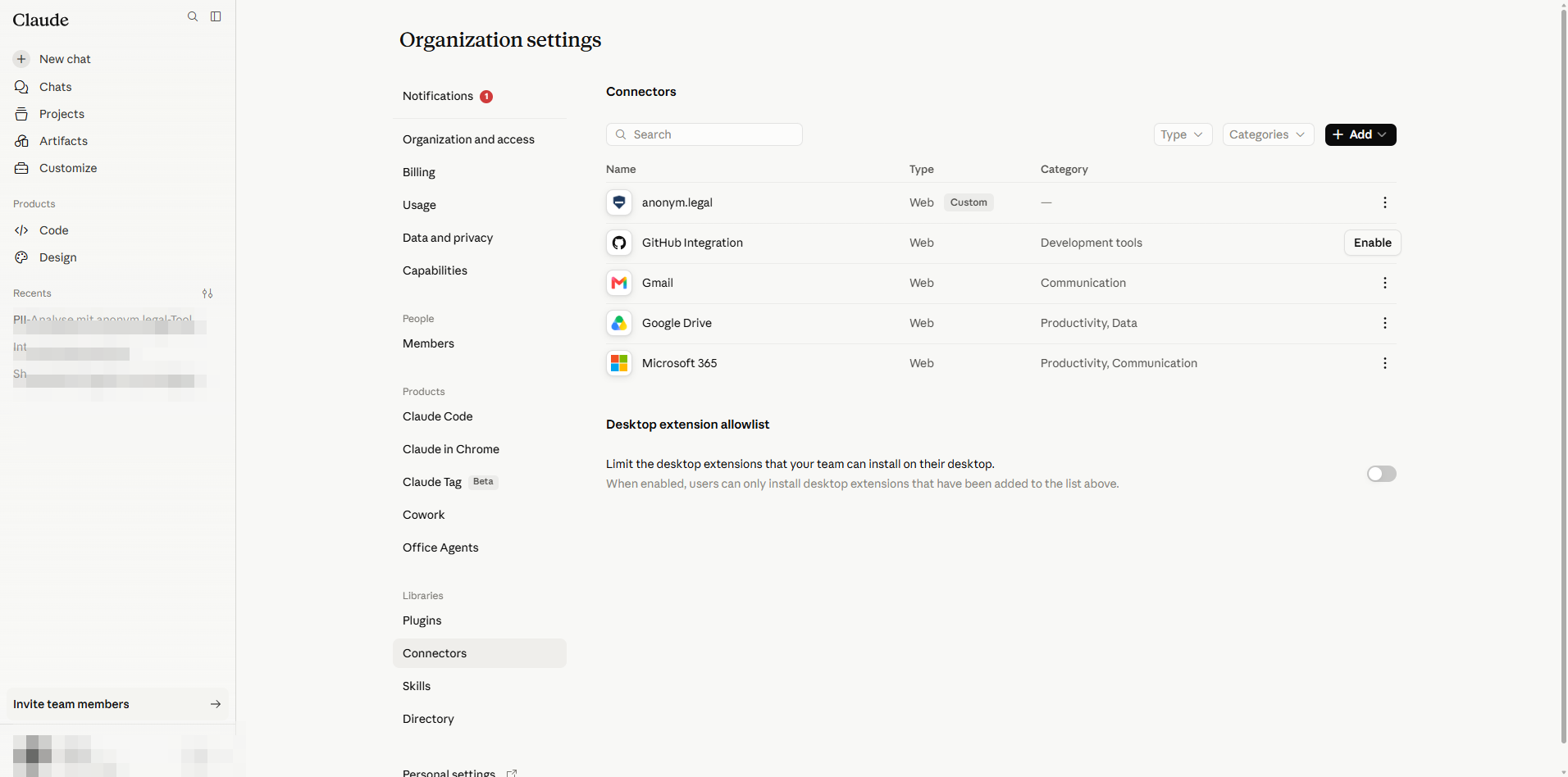
Admin → Connectors。 - 2
点击该行的 More options (⋯) 图标并选择 Delete。
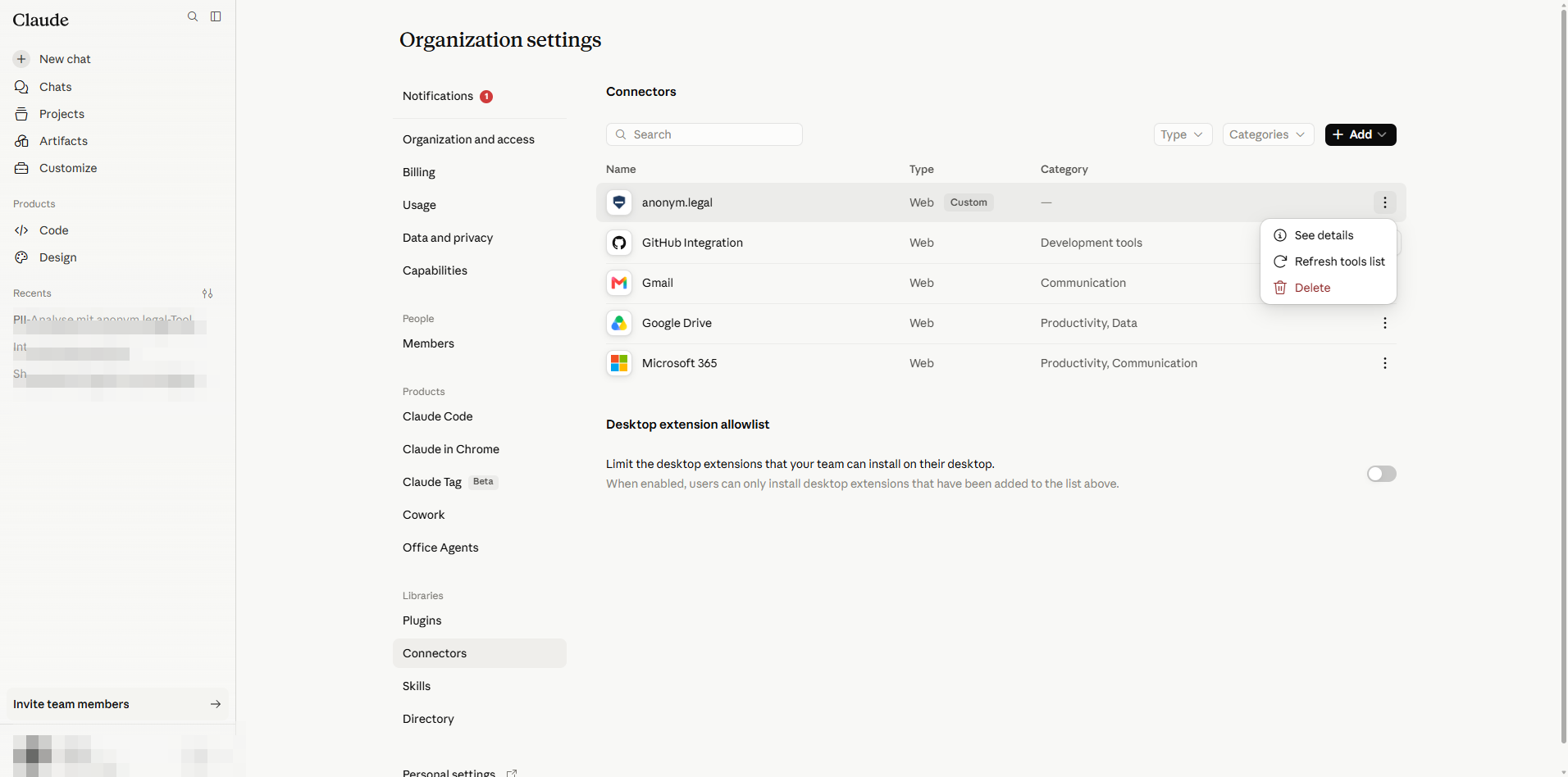
行上下文菜单:Delete 会为整个组织移除该连接器。 - 3
在 Remove anonym.legal for your team? 对话框中确认。
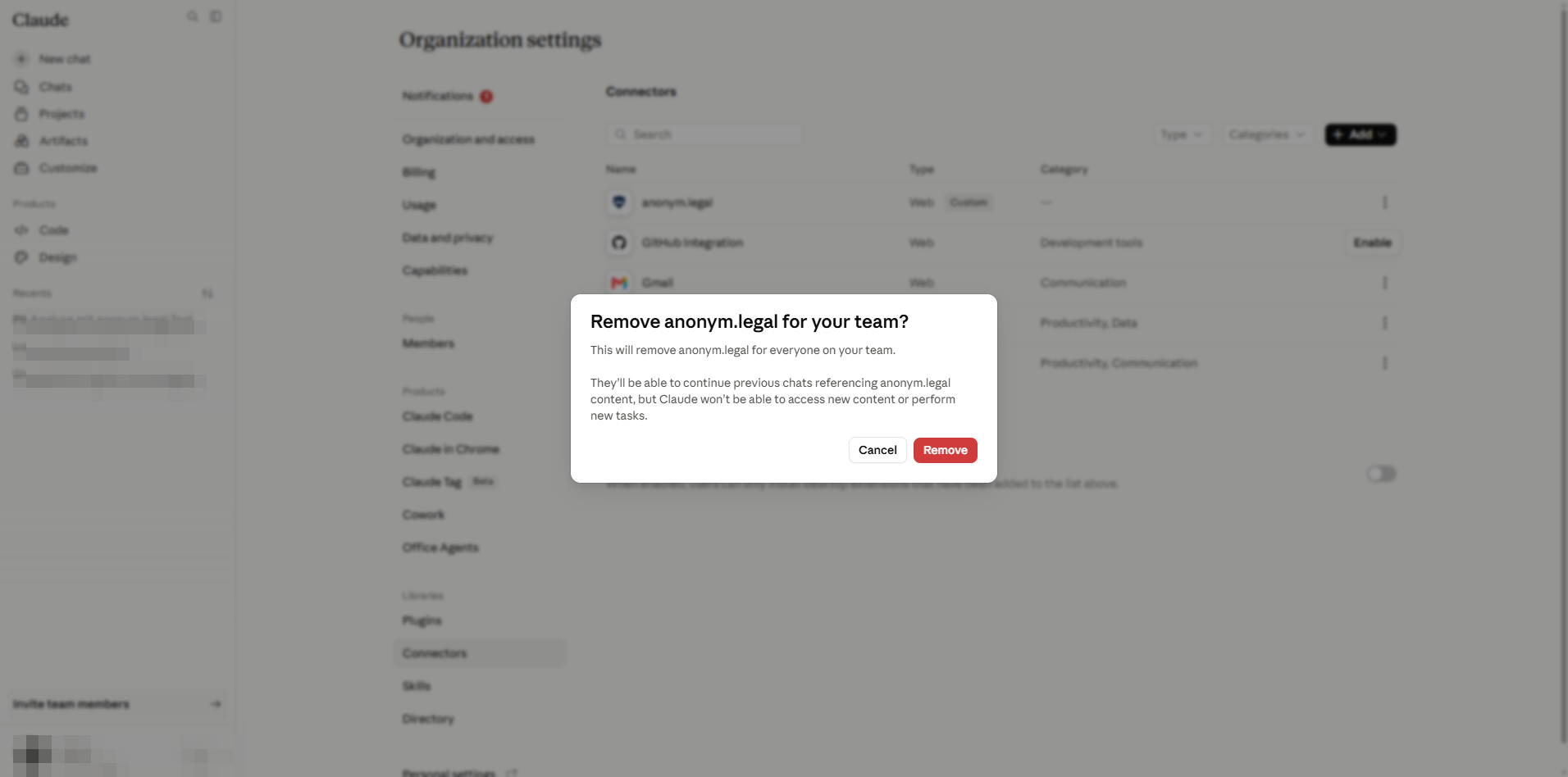
移除确认。这会为工作区中的每位用户注销服务器注册。 - 4
该表将在没有该连接器的情况下刷新。已连接该连接器的用户会看到它从 Customize 页面消失。
干净状态 — 可以安全地通过 §2 使用新设置重新添加。
B 部分
最终用户设置
B 部分的所有操作均在 /customize/* 下进行,并且仅限于当前用户自己的账户。管理员无需为其他用户执行这些步骤。
6. 用户 — 通过 OAuth 连接并登录
管理员发布连接器后 (A 部分),每位用户在自己的账户上激活一次。
- 1
打开侧边栏 → Customize,或访问 https://claude.ai/customize/connectors。用户级别的 Connectors 面板会列出组织已发布的所有内容。
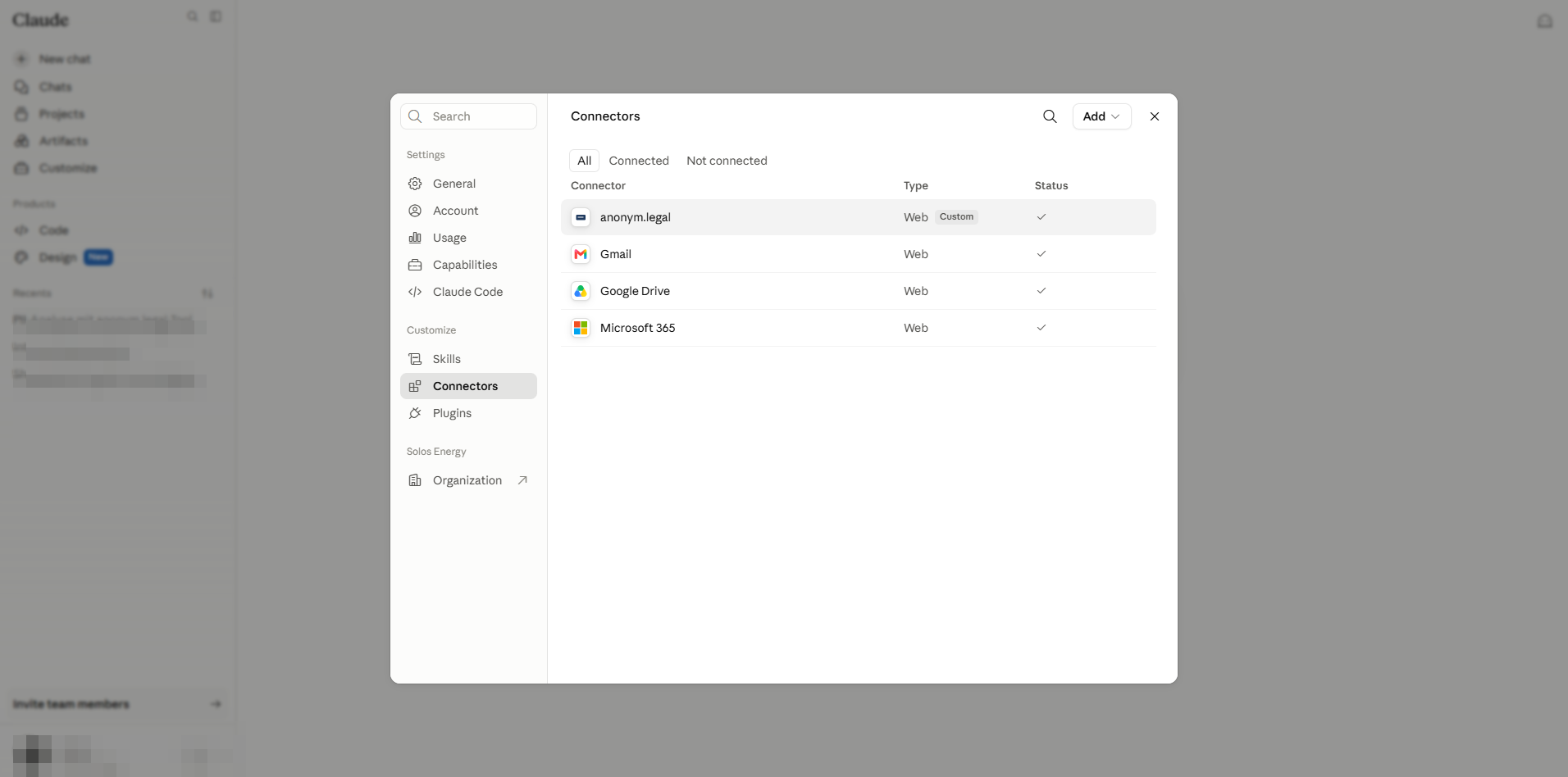
用户视图。anonym.legal 标记为 Custom,并且在此账户中已 Connected。 - 2
如果该行显示 Get started,请点击它。将弹出 anonym.legal OAuth 授权页面。使用您的 anonym.legal 凭据登录,授予访问权限 → 弹出窗口关闭,行状态翻转为 Connected。令牌按用户存储;管理员永远看不到您的凭据。
- 3
点击该行 (或其 View 操作) 以打开连接器详情面板。您可以在此复制 MCP 服务器 URL、Disconnect,或访问行操作菜单。
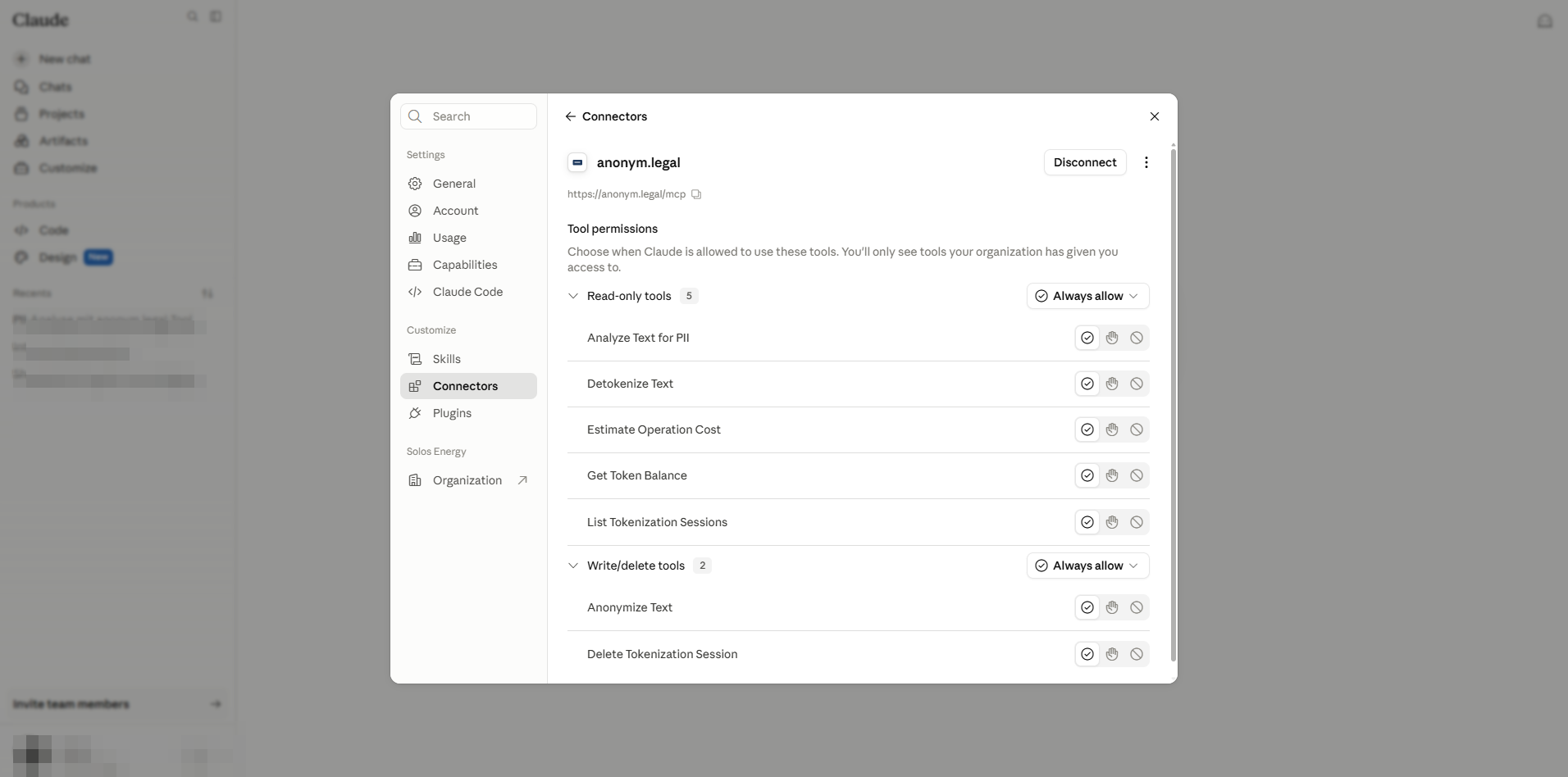
用户连接器详情:服务器 URL 可复制;下方的权限部分仅限此用户。 - 4
More options 菜单提供 Refresh tools list (从服务器重新获取工具目录) 和 Remove (仅撤销此用户的授权 — 不会为工作区删除连接器)。
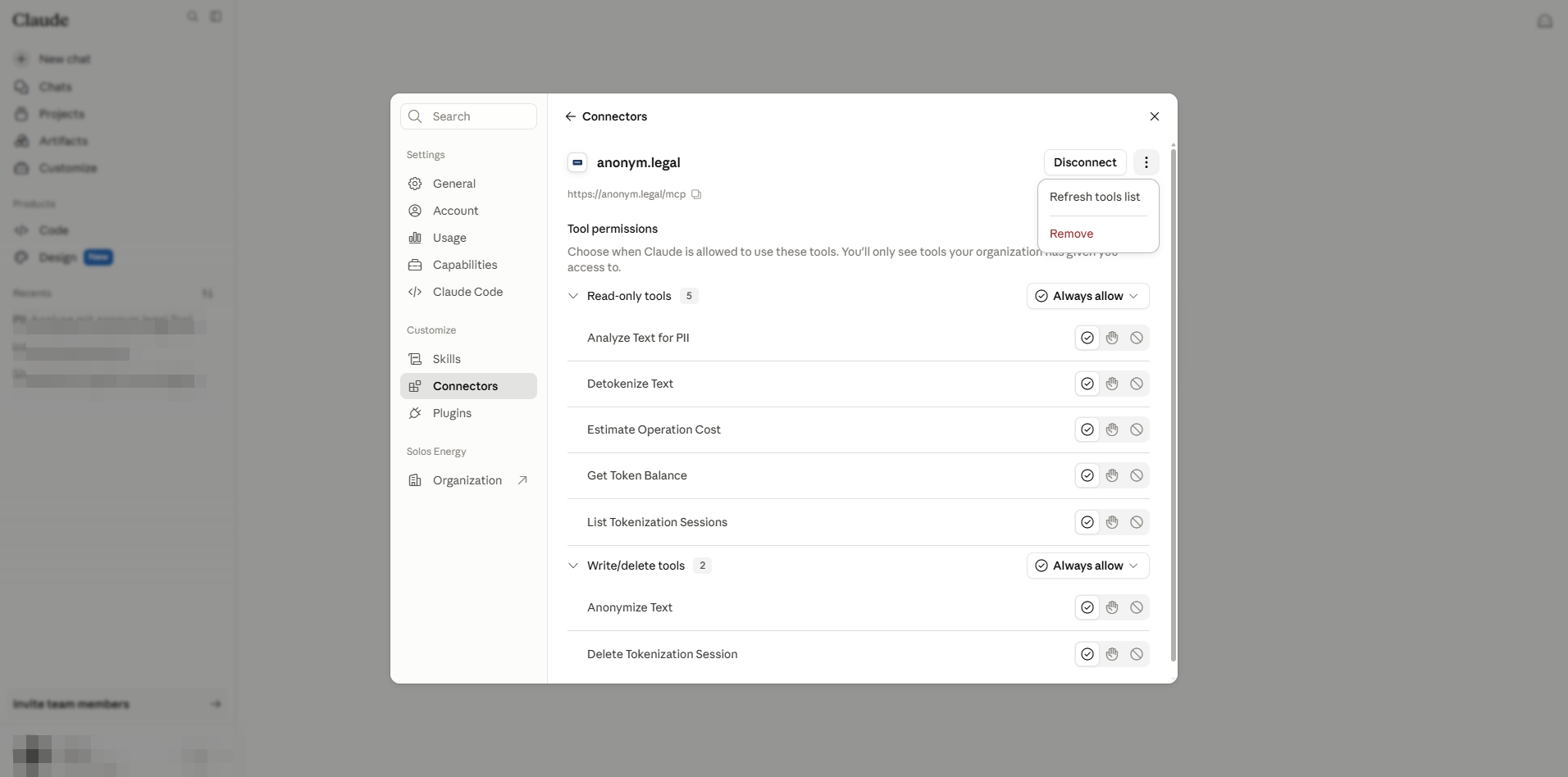
Refresh 与 Remove 的对比。只有管理员可以完全删除连接器 (A 部分 §5)。
7. 用户 — 按工具偏好设置
Tool permissions 中的每一行显示三选一的单选按钮:Always allow / Needs approval / Blocked。这三个是用户自己的选择,受 §3 中管理员上限的约束。
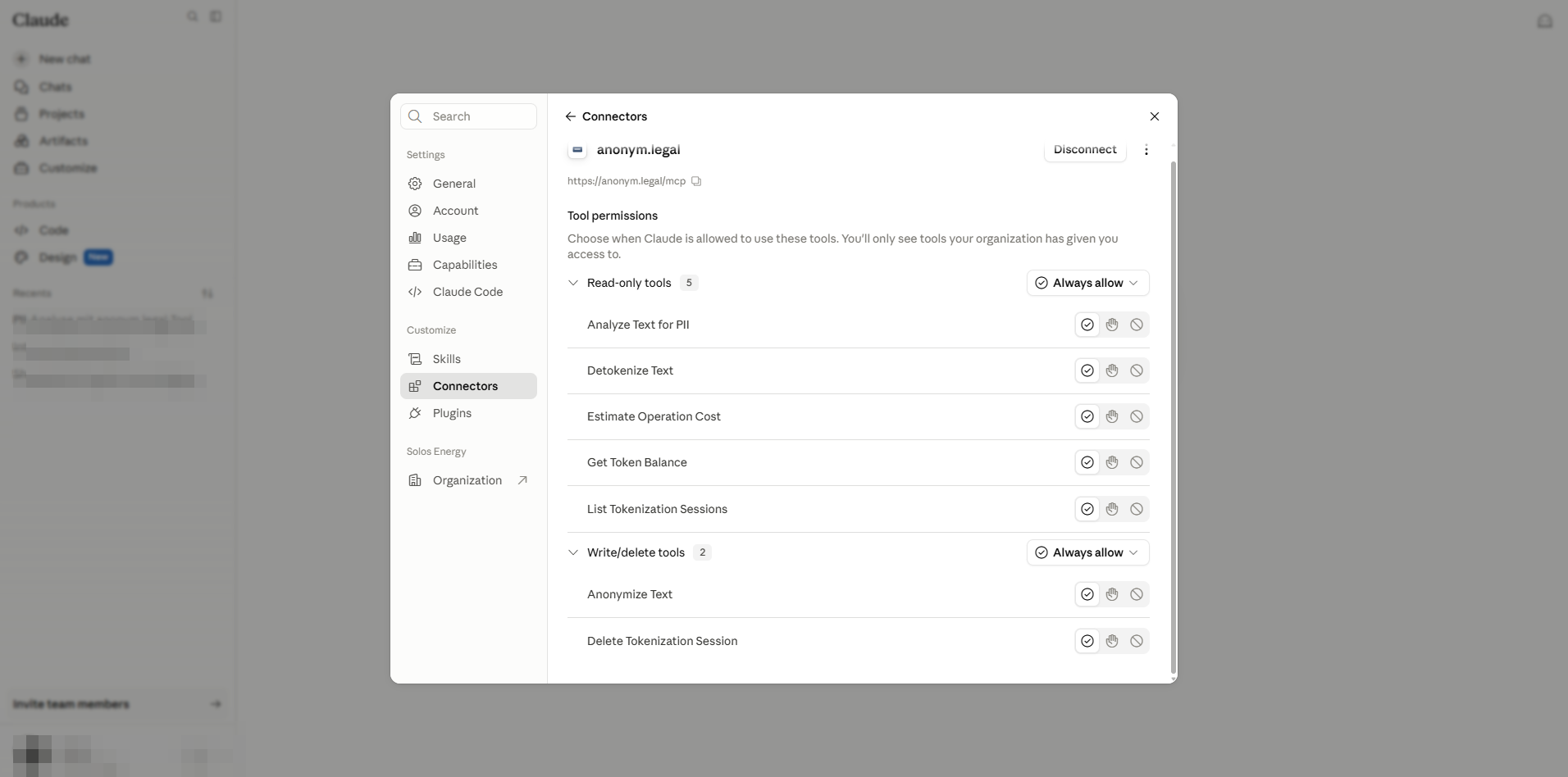
| 用户选择 | 聊天期间的效果 | 适用场景 |
|---|---|---|
| Always allow | Claude 不提示即调用工具。 | 您持续使用的只读实用工具。 |
| Needs approval (也称为 "Ask") | Claude 每次都请求一键确认。 | 写入 / 删除工具;敏感工作负载。 |
| Blocked | 工具在此账户中对 Claude 隐藏。 | 从团队原本使用的工具中个人选择退出。 |
8. 通过实时工具调用进行验证
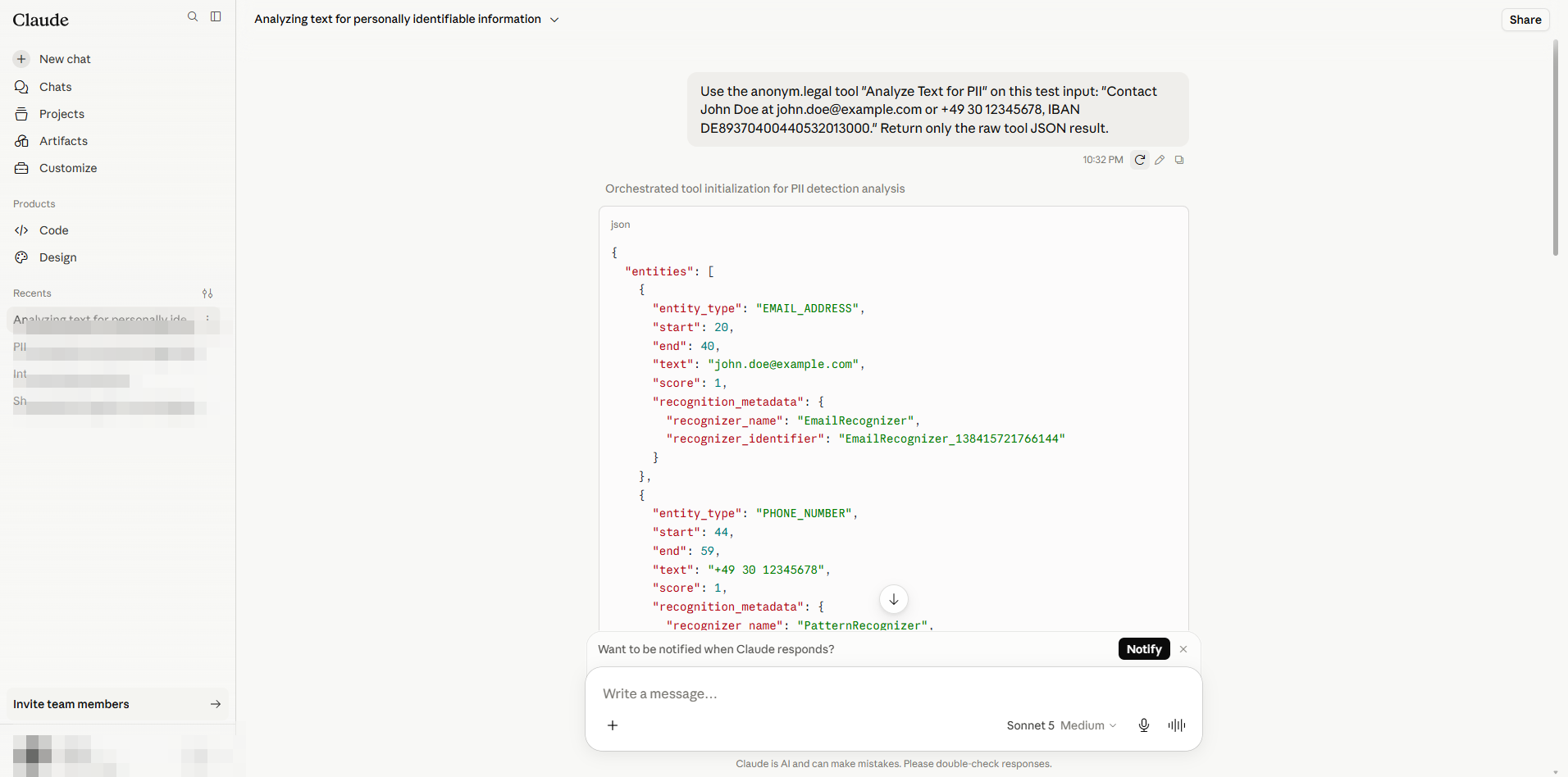
打开一个新聊天,指示 Claude 调用特定的 anonym.legal 工具。本指南使用的示例提示:
Use the anonym.legal tool "Analyze Text for PII" on this test input:
"Contact John Doe at john.doe@example.com or +49 30 12345678, IBAN DE89370400440532013000."
Return only the raw tool JSON result.
Claude 调用工具并流式返回 JSON 响应。屏幕截图显示检测到九个实体,包括 PERSON、EMAIL_ADDRESS、PHONE_NUMBER 和 IBAN_CODE。
9. 参考:权限模型与风险
管理员与用户 — 各方控制什么
| 关注点 | 管理员 (A 部分) | 用户 (B 部分) |
|---|---|---|
| 为工作区注册 / 移除连接器 | 是,在 /admin-settings/connectors。 | 否。 |
| 设置按工具的上限 (用户可选择的最高层级) | 是。 | 否。 |
| 整体启用 "Always allow" 层级 (Cowork 门控) | 是,在 /admin-settings/cowork。 | 否。 |
| 使用 anonym.legal 账户完成 OAuth 登录 | 否 (除非同时作为最终用户操作)。 | 是,每个账户一次。 |
| 在上限内选择按工具偏好 | 否。 | 是,在 /customize/connectors。 |
| 撤销自己的连接而不影响他人 | 不适用。 | 是 — 行上的 "Remove"。 |
上限矩阵
| 管理员设置 | 用户可选择… | 聊天期间的结果 |
|---|---|---|
| Always allow | Always allow / Needs approval / Blocked | 用户完全自由选择,直至无人值守使用。 |
| Approval required | Needs approval / Blocked (没有 "Always allow") | Claude 始终确认。 |
| Blocked | — | 工具永不显现。 |
Individual sign-in 与 Managed authorization
安全注意事项
- 仅添加来自可信开发者的连接器。恶意 MCP 服务器可以通过工具响应注入提示,诱使 Claude 采取有害操作 ("间接提示注入")。
- 未配置工具的默认限制设置是您的安全网,以防提供商未经通知发布新功能 — 将其设为 Blocked 可要求每次都进行管理员审查。
- Cowork "Skip all approvals" 会关闭代理运行中的每一个确认提示。不要为处理受监管数据的租户启用它。
- 在将连接器推广给生产用户之前,请轮换用于测试连接器的凭据。
每项设置的位置
| 设置 | 角色 | 位置 |
|---|---|---|
| 添加 / 删除组织连接器 | 管理员 | /admin-settings/connectors |
| 按工具上限 | 管理员 | /admin-settings/connectors → 连接器详情 |
| 未配置工具的默认限制 | 管理员 | 同一面板,Tool permissions 顶部 |
| "Always allow" 门控 & Skip approvals | 管理员 | /admin-settings/cowork |
| 连接 / 断开 (自己的账户) | 用户 | /customize/connectors |
| 按工具偏好 (自己的账户) | 用户 | /customize/connectors → 连接器详情 |
| 语言 / 区域设置 | 用户 | 侧边栏个人资料菜单 → Language |
来源:针对 claude.ai 的实操捕获以及 anonym.legal MCP 服务器文档。图标和 UI 分别归 Anthropic 和 anonym.legal 所有。
准备好保护您的团队了吗?
在到达 Claude 之前开始匿名化
创建 anonym.legal 账户,将其连接到您的 Claude Enterprise 工作区,每条消息默认保持无 PII。
Limitations / Important note
- Screenshots are captured from the Claude Enterprise web UI; layout may change without notice.
- This guide is informational, not legal advice. Verify policies with your compliance team.