Per George Curta ·
Guia d'integració empresarial
Integració d'anonym.legal amb Claude Enterprise
Guia pas a pas per a administradors i usuaris d'un espai de treball Claude Enterprise — amb captures, model de permisos i verificació.
https://anonym.legal/mcpAuth: DCR + OAuthPart A — Configuració de l'administrador
Part B — Configuració de l'usuari final
Verificació i referència
1. Resum i requisits previs
anonym.legal exposa un servidor MCP (Model Context Protocol) que detecta, tokenitza i destokenitza dades personals (PII) en text. Connectat a Claude Enterprise, permet a Claude ocultar PII abans d'enviar-les a tercers, restaurar els valors originals a demanda i controlar cost/quota.
Qui fa què
- AdminRegistra el connector per a tot l'espai de treball, estableix el sostre de permisos per a tota l'organització i controla l'autorització Cowork. Res d'això afecta les credencials d'un usuari concret.
- UsuariAutoritza el connector per al seu propi compte de Claude via OAuth i tria una preferència per eina (Always allow / Pregunta / Bloquejat) dins del sostre de l'administrador.
Què necessiteu
- Un espai de treball Claude Enterprise (aquesta guia s'aplica a qualsevol tenant Enterprise).
- Rol d'administrador a Claude per a la Part A.
- Un compte d'anonym.legal per a la conversa OAuth (els usuaris veuen una finestra d'inici de sessió durant la connexió).
- URL del servidor MCP: https://anonym.legal/mcp.
Part A
Configuració de l'administrador
Tot el que hi ha a la Part A passa sota /admin-settings/* i requereix rol d'administrador. Aquests passos afecten cada membre de la vostra organització.
2. Admin — afegir el connector personalitzat
Claude inclou un directori de connectors de primera part i de socis, però anonym.legal s'afegeix com a connector Web personalitzat. Comenceu a https://claude.ai/admin-settings/connectors.
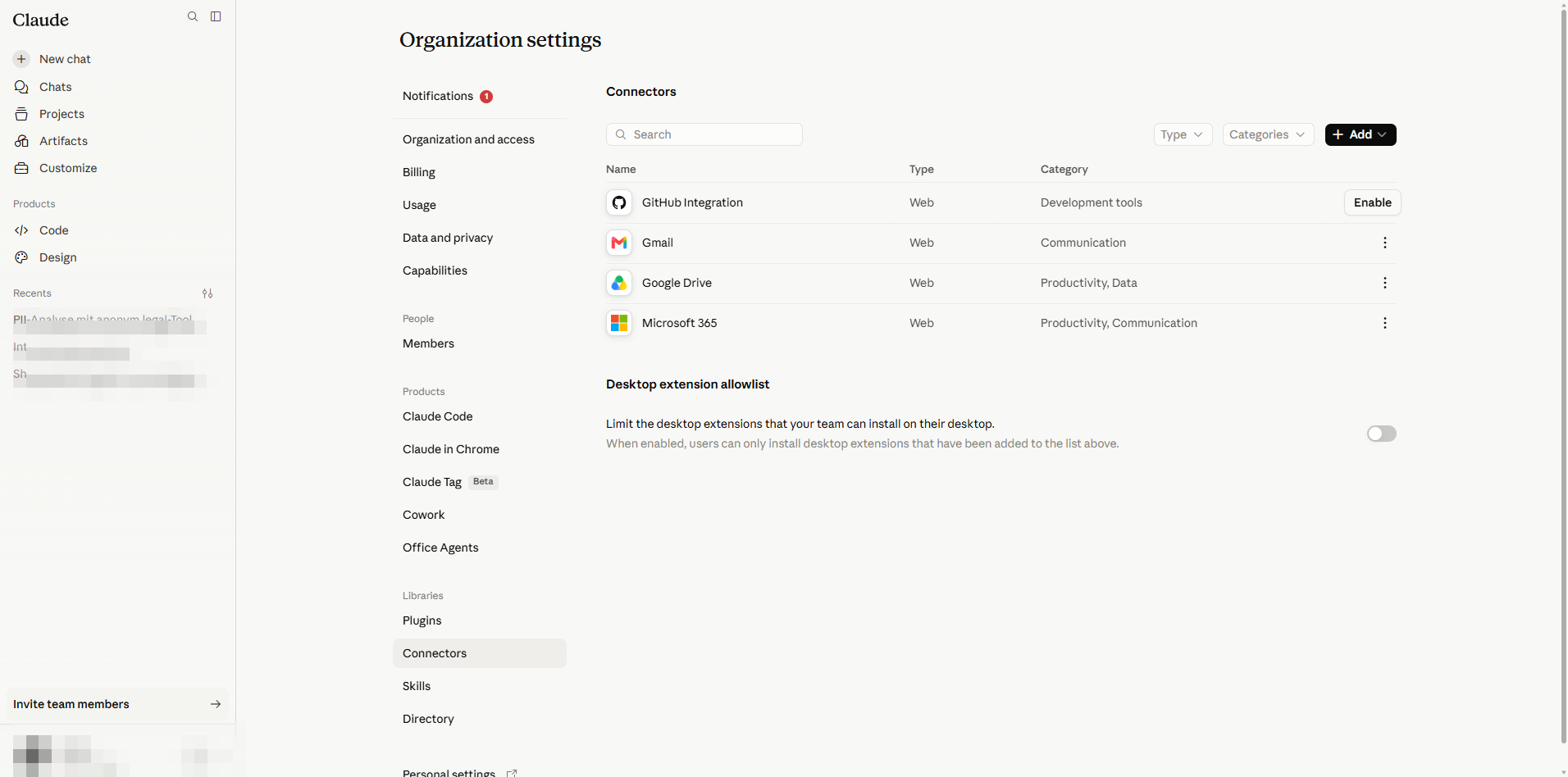
- 1
Feu clic a Add connector. El menú mostra dues opcions: All available (directori curat) i Custom.
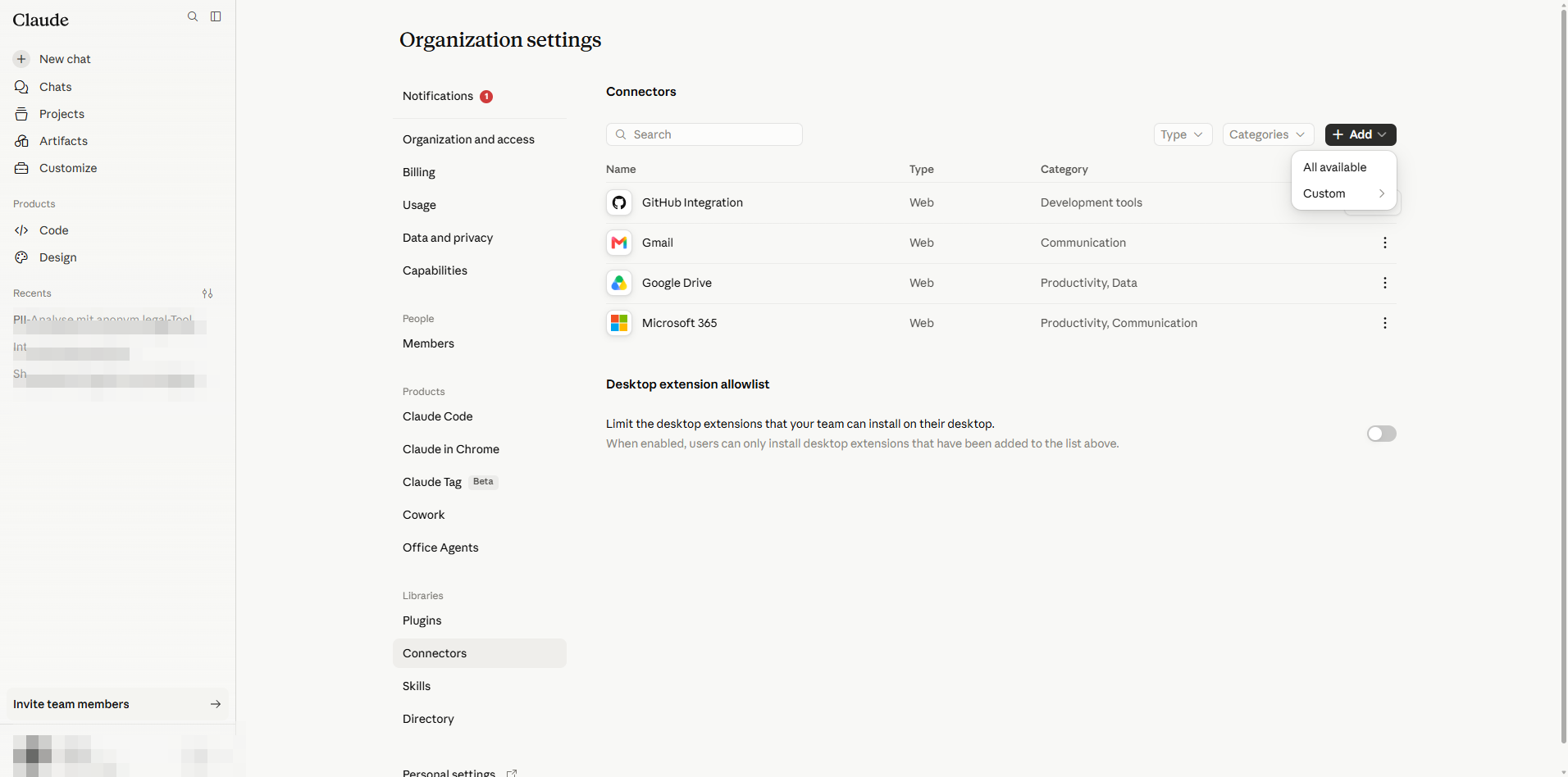
Menú Add connector: trieu Custom per a servidors MCP arbitraris. - 2
Passeu el ratolí sobre Custom; un submenú ofereix Web o Desktop. anonym.legal és un endpoint MCP allotjat, per tant trieu Web.
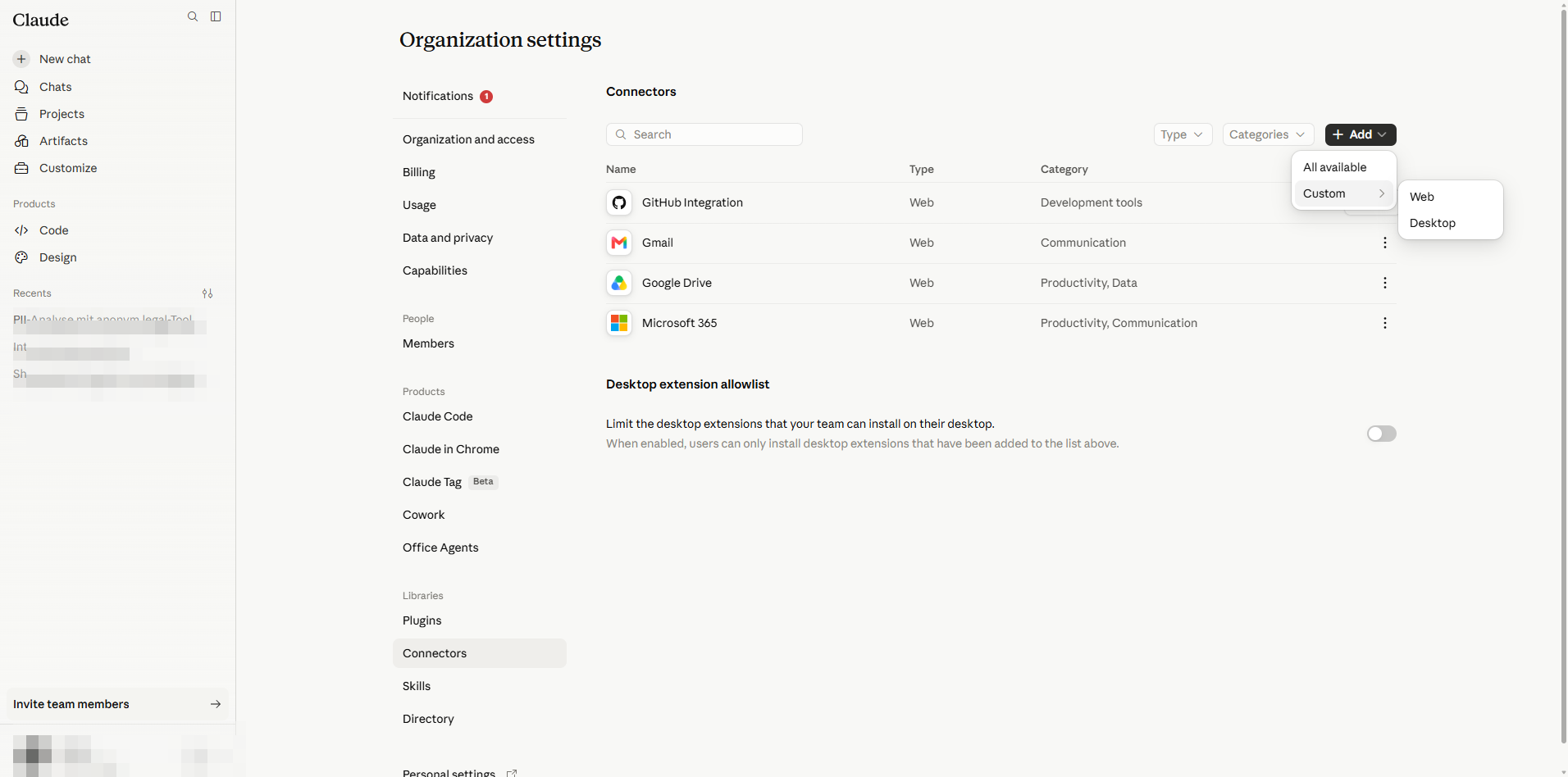
Trieu Web per a un servidor MCP remot; Desktop és per a un servidor allotjat localment. - 3
S'obre el diàleg Add custom connector (actualment en BETA).
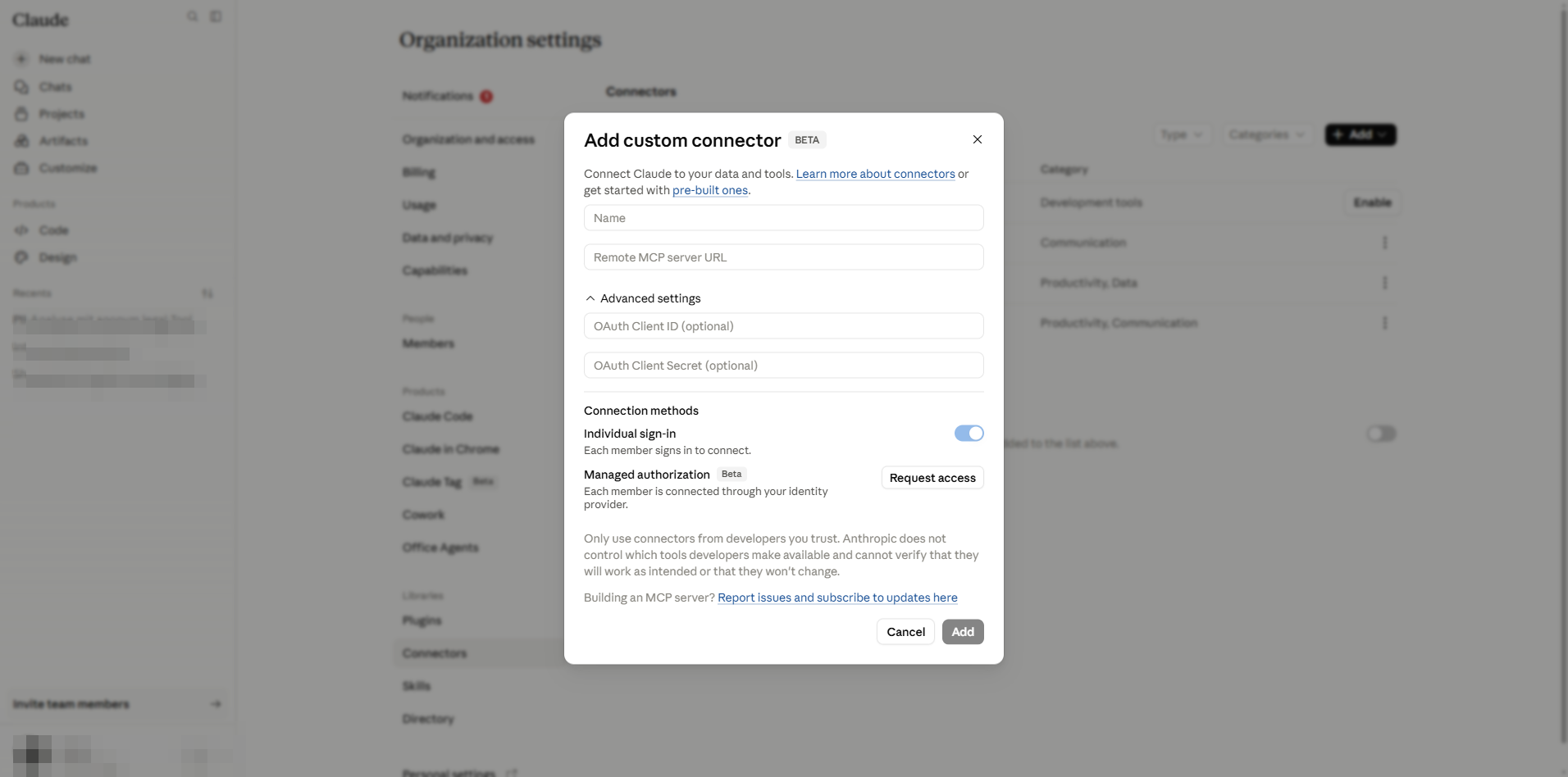
Diàleg buit. Camps: Name, Remote MCP server URL, OAuth Client ID/Secret opcionals i mètode d'autorització. - 4
Empleneu els camps:
- Name: anonym.legal (mostrat als usuaris a les converses i a la configuració).
- Remote MCP server URL: https://anonym.legal/mcp.
- Deixeu OAuth Client ID i Client Secret buits. anonym.legal admet Dynamic Client Registration (DCR), de manera que Claude negocia automàticament les credencials del client. Emplenar aquests camps només és necessari quan el proveïdor MCP no admet DCR.
- Mantingueu Individual sign-in seleccionat (per defecte). Cada usuari s'autoritza amb el seu propi compte d'anonym.legal.
- L'opció Managed authorization (Beta) està desactivada tret que el vostre tenant estigui a la llista d'espera enterprise-managed-auth; el mode gestionat permetria que la vostra organització fos propietària dels tokens de manera centralitzada en lloc de cada usuari.
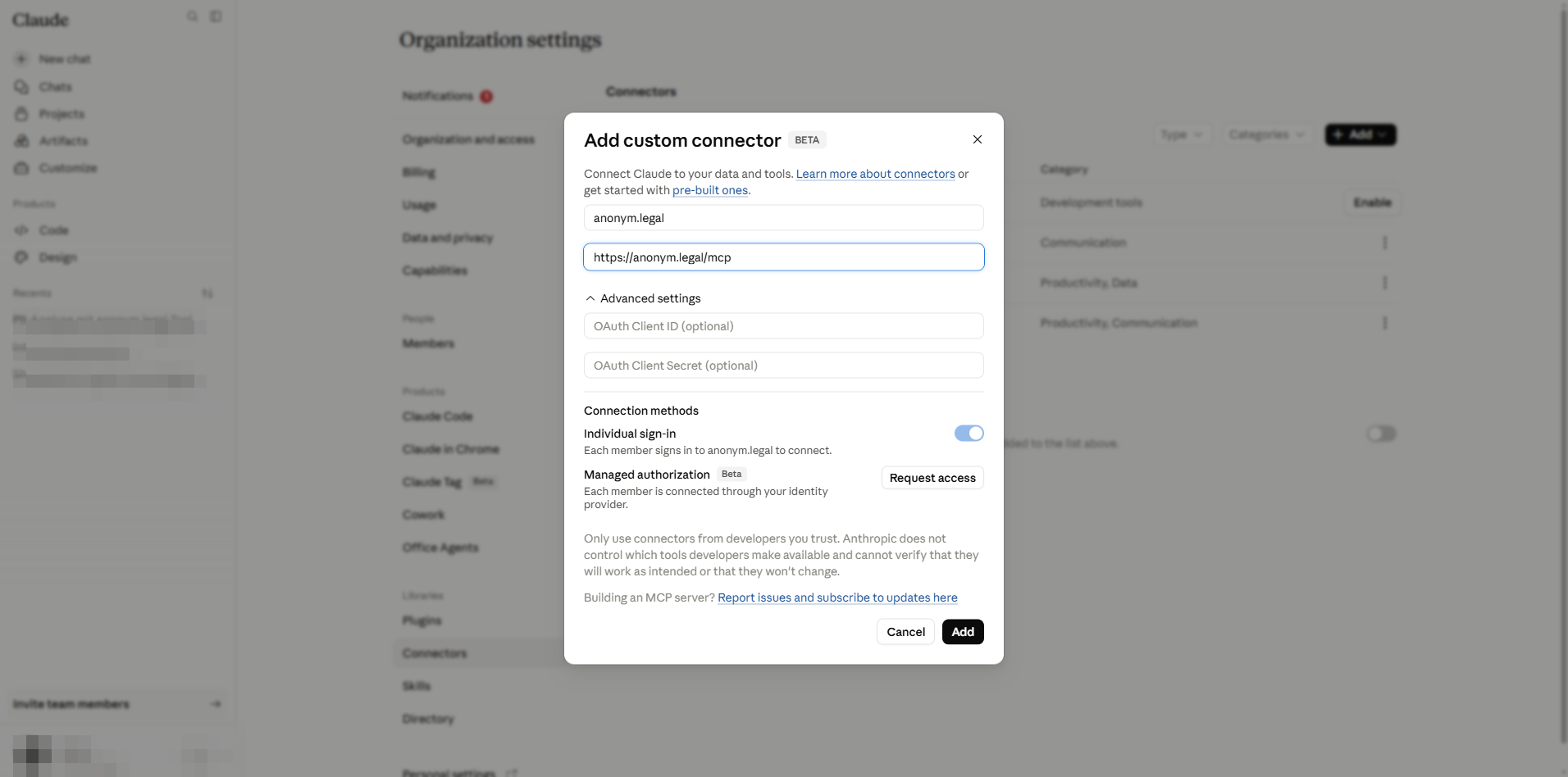
Diàleg emplenat. Advertència: habiliteu únicament connectors de desenvolupadors de confiança — un servidor maliciós pot injectar instruccions ("prompt injection") a través de les respostes de les eines. - 5
Feu clic a Add. El connector ara apareix a la llista de connectors. Els usuaris encara no el poden utilitzar — cadascun ha de passar per la Part B.
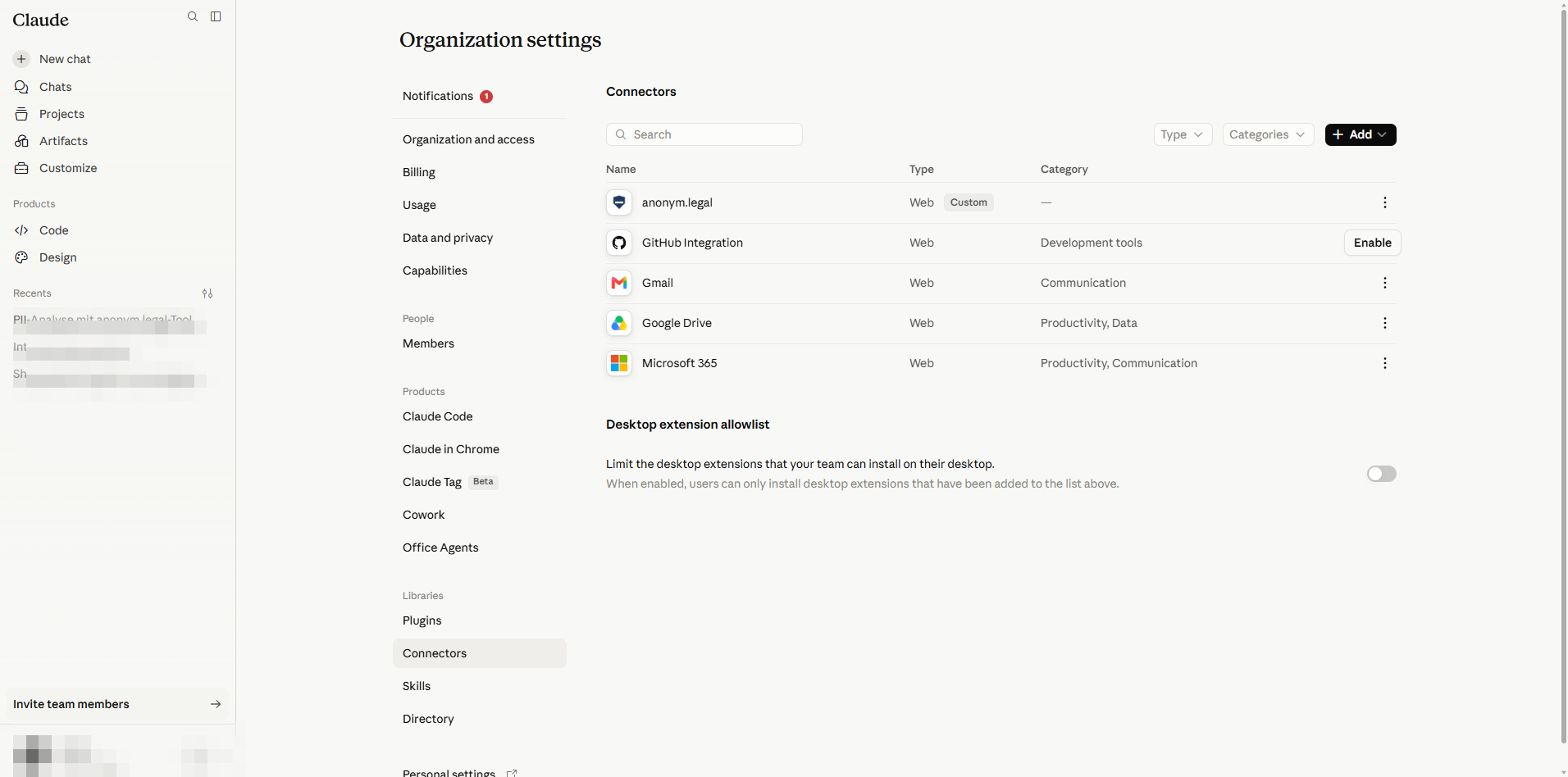
Registrat. Qualsevol persona de la vostra organització ja el pot habilitar des de la seva pròpia pàgina Customize.
3. Admin — configurar el sostre de permisos d'eines
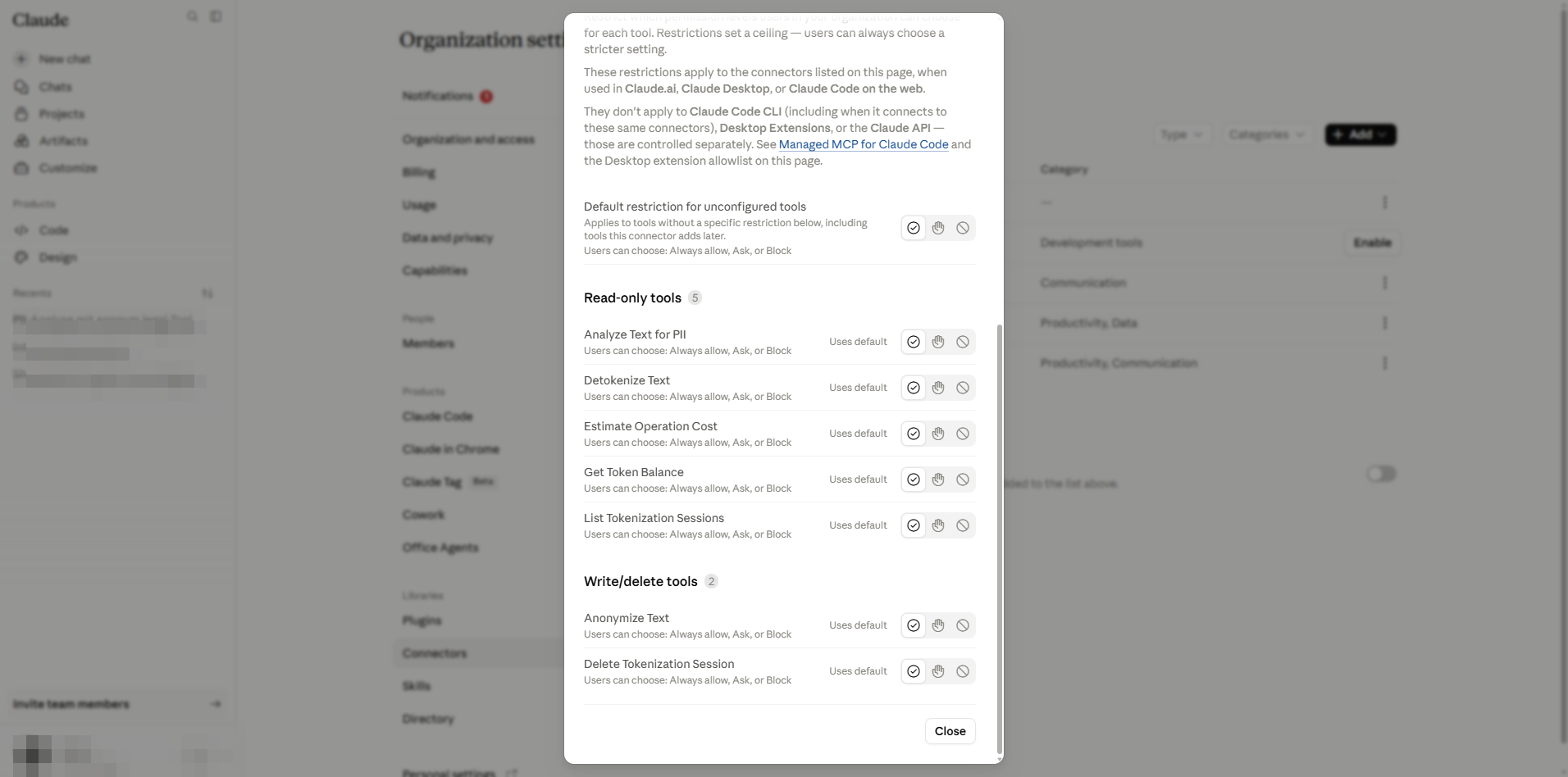
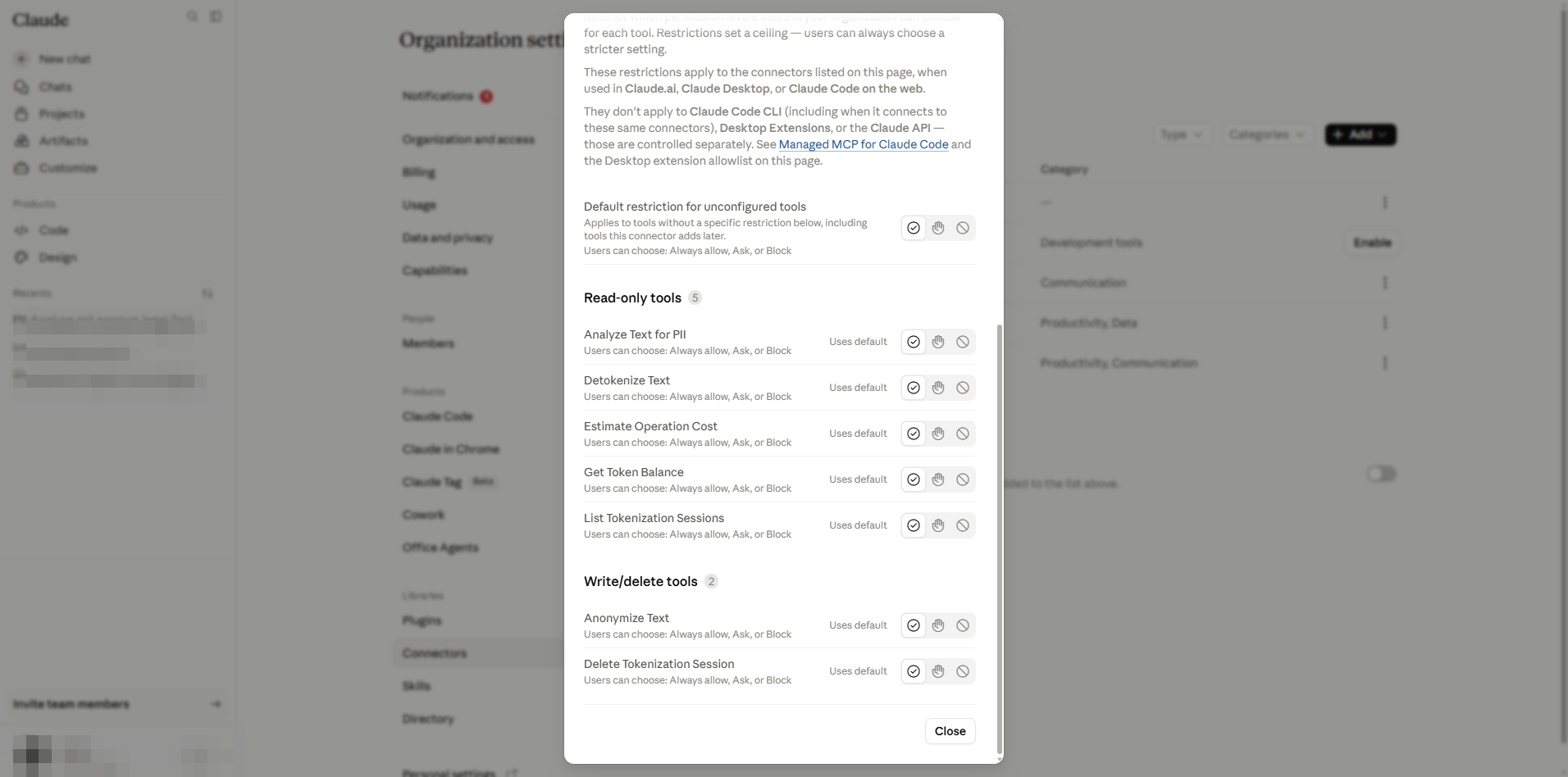
Feu clic a la fila d'anonym.legal per obrir-ne els detalls. Les eleccions de permisos de l'administrador formen un sostre: els usuaris individuals poden ser iguals o més estrictes, mai més permissius.
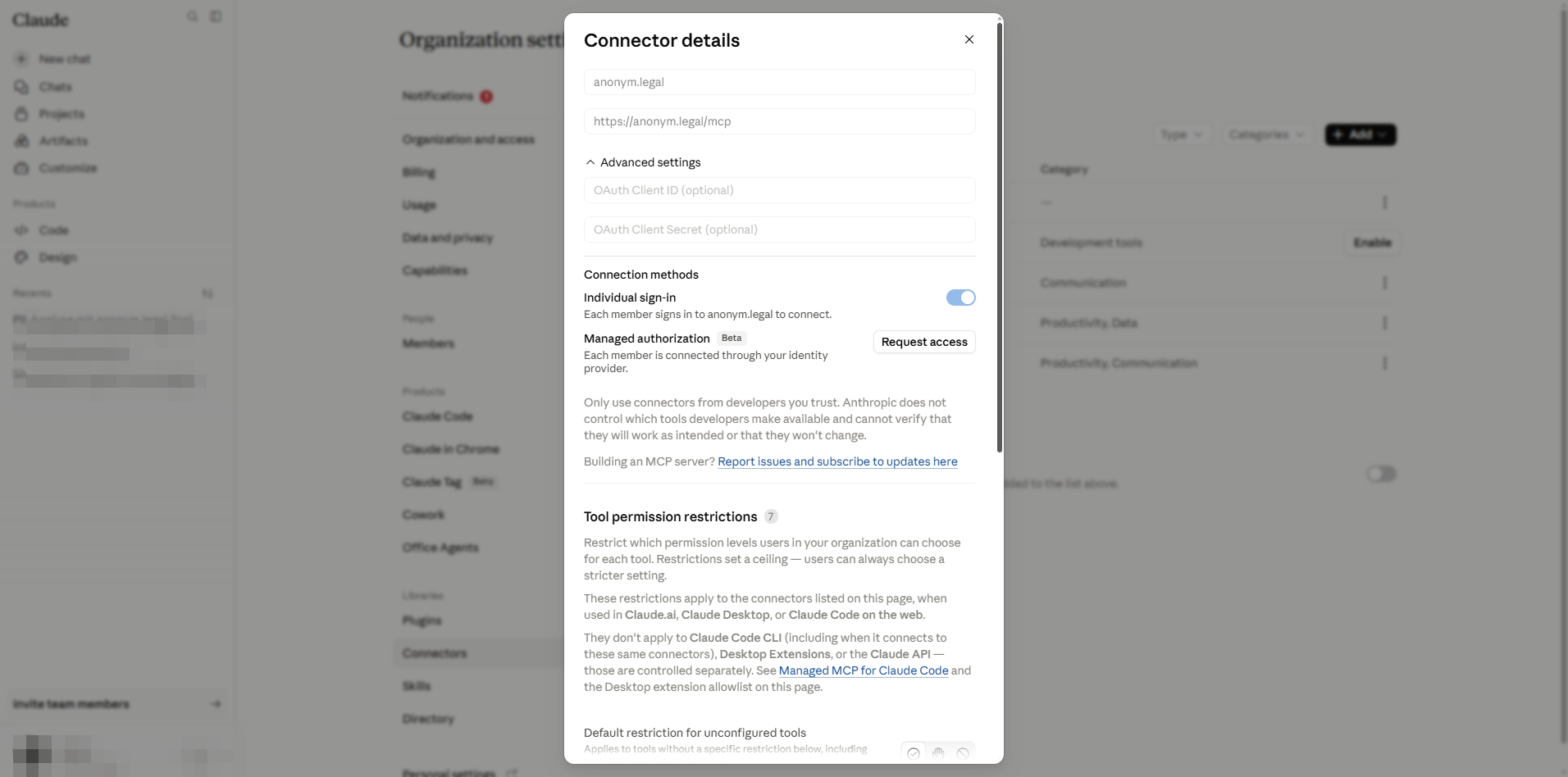
Restricció per defecte per a eines no configurades
El primer control decideix què passa quan anonym.legal introdueix una eina nova que encara no és a la llista. Trieu Blocked per a la postura més segura; les eines ja configurades no es veuen afectades.
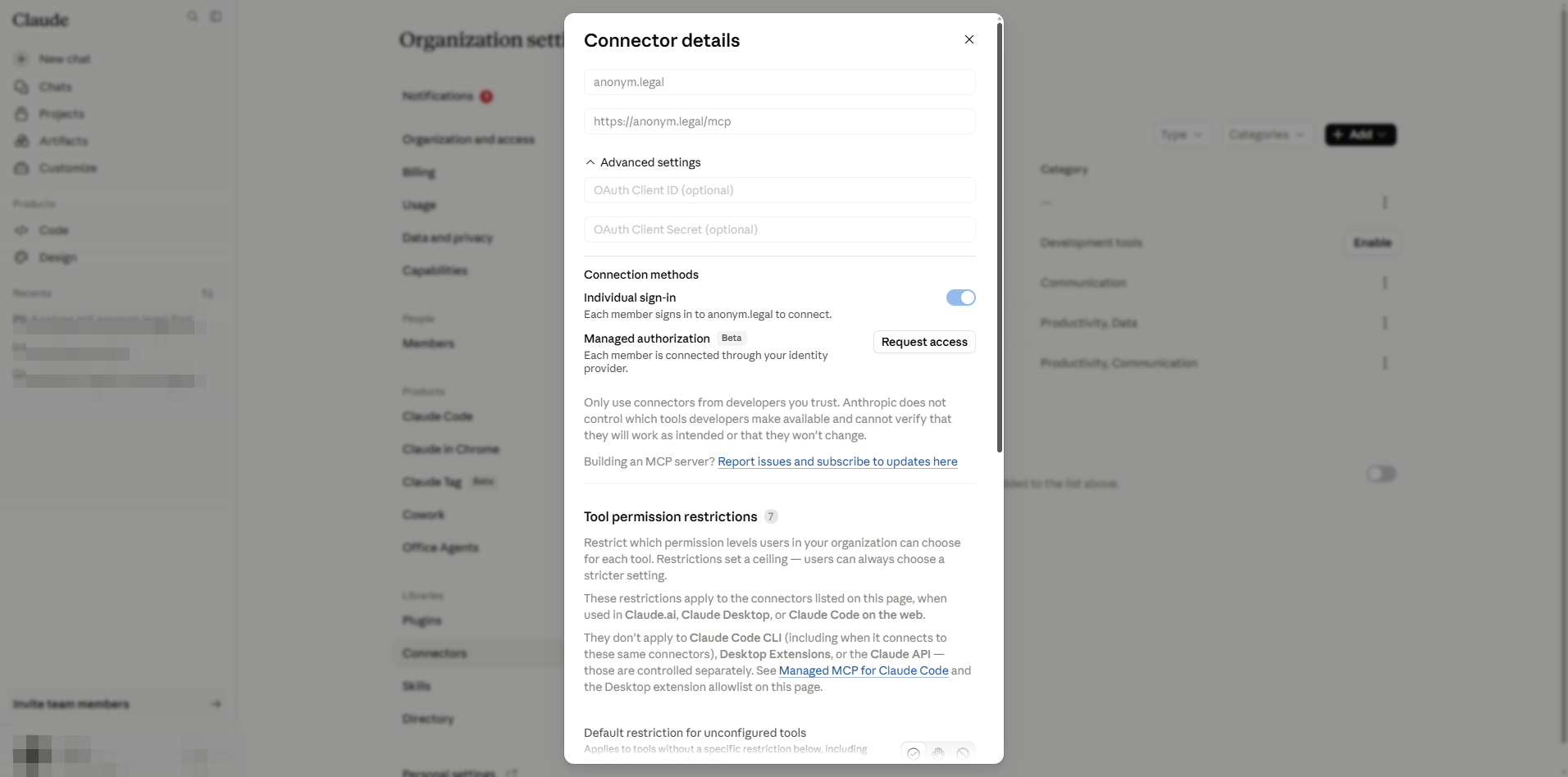
Eines només de lectura
Aquestes criden anonym.legal sense modificar l'estat del cantó del proveïdor. En aquest desplegament, les sis estan establertes a Always allow perquè els usuaris finals les puguin invocar sense friccions.
- Analyze Text for PII — detecta entitats PII en una mostra de text.
- Detokenize Text — inverteix l'anonimització amb un token de sessió.
- Estimate Operation Cost — càlcul de preus en simulació abans de crides reals.
- Get Token Balance — quota restant per al compte.
- List Tokenization Sessions — sessions creades per aquest usuari.
- Llista de Preconfiguracions — les preconfiguracions d'anonimització predeterminades, personals i públiques disponibles per passar a altres eines.
Eines d'escriptura / eliminació
Aquestes eines creen o destrueixen estat a anonym.legal (una sessió de tokenització o els seus registres). La vostra organització les permet, però els tenants sensibles poden forçar Approval required perquè Claude hagi de demanar confirmació a l'usuari abans de cada crida.
- Anonymize Text — substitueix PII per tokens reversibles (crea una sessió de tokenització).
- Delete Tokenization Session — descarta irreversiblement una sessió i els seus tokens.
- Ocultar PII en Imatge — detecció basada en OCR que oculta o analitza PII en una imatge PNG/JPEG (consumeix tokens; requereix l'ocultació d'imatges habilitada).
4. Admin — autorització Cowork per a "Always allow"
Independentment de la taula per eina, la configuració Cowork/agent de Claude decideix si el nivell "Always allow" està disponible per a les eines de connector. Aneu a https://claude.ai/admin-settings/cowork.
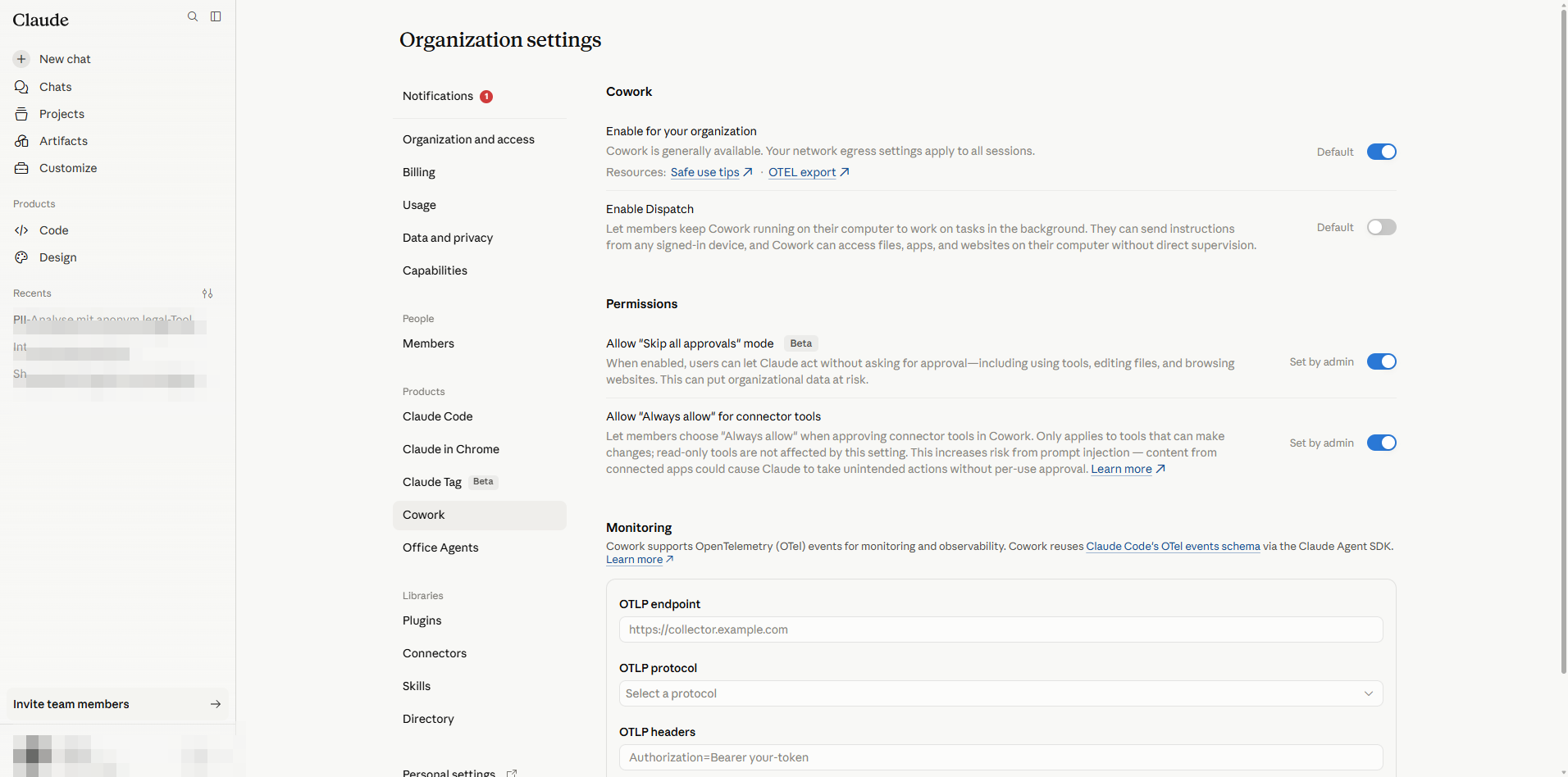
- Enable for your organization — ha d'estar activat perquè els connectors es puguin executar de manera agèntica.
- Enable Dispatch — regula la funcionalitat Dispatch; no té a veure amb els permisos del connector.
- Allow "Skip all approvals" mode (Beta) — perillós: els usuaris obtenen un interruptor únic per saltar-se totes les peticions. Deixeu-lo desactivat per a càrregues regulades.
- Allow "Always allow" for connector tools — quan està desactivat, els usuaris no poden persistir una preferència "Always allow"; obtenen una experiència "Pregunta cada vegada" fins i tot per a eines només de lectura. Quan està activat, els usuaris continuen limitats pel sostre per eina de l'administrador.
5. Admin — restablir / eliminar el connector
Utilitzeu aquests passos quan el connector necessiti una reinstal·lació neta (per exemple, després de canviar la URL de transport, rotar les credencials del client o retirar la integració). L'eliminació és a tota l'organització i invalida l'autorització OAuth de cada usuari.
- 1
Obriu la taula de connectors de l'administrador a https://claude.ai/admin-settings/connectors. Localitzeu la fila d'anonym.legal.
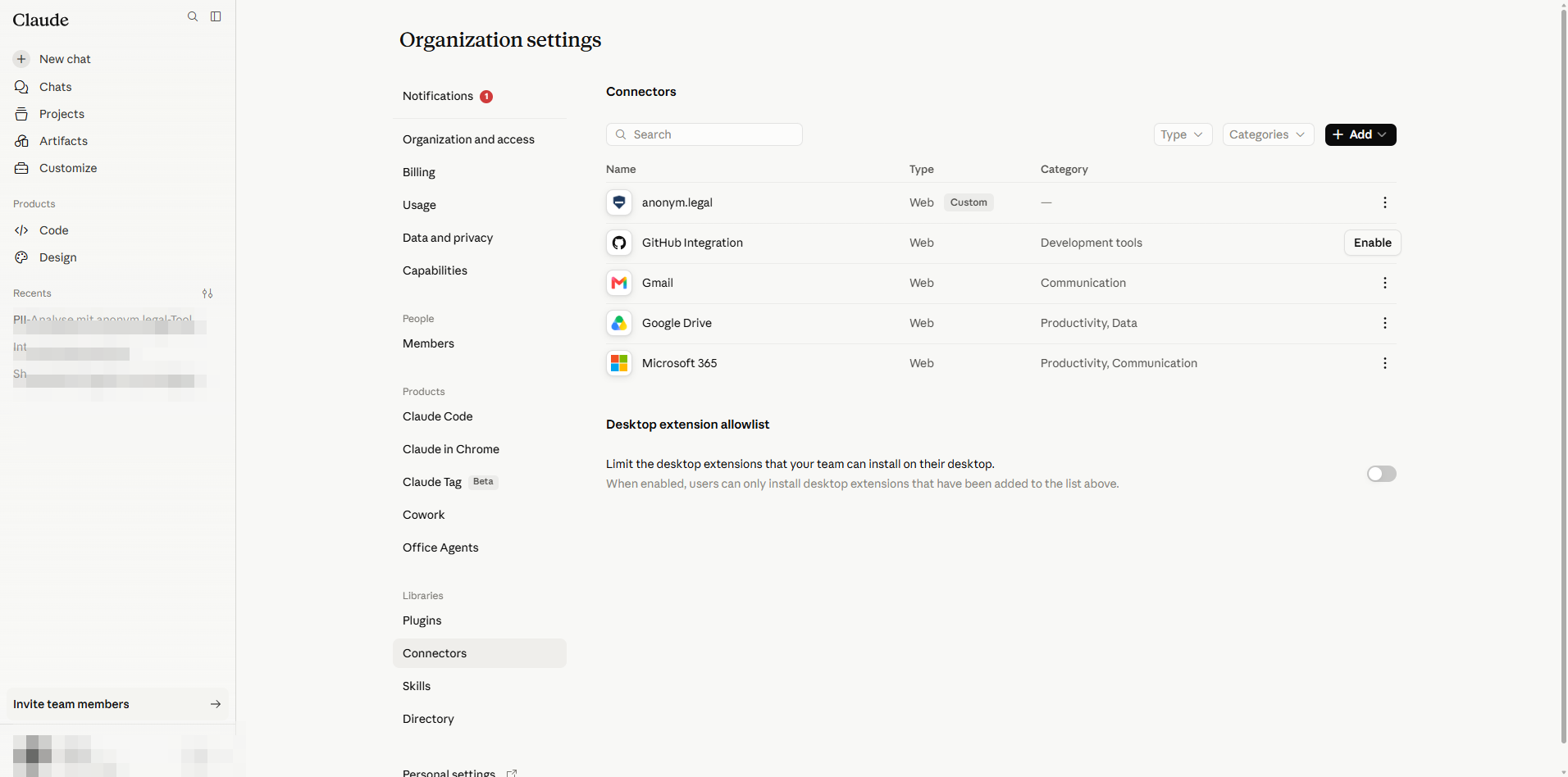
Admin → Connectors. - 2
Feu clic a la icona More options (⋯) a la fila i trieu Delete.
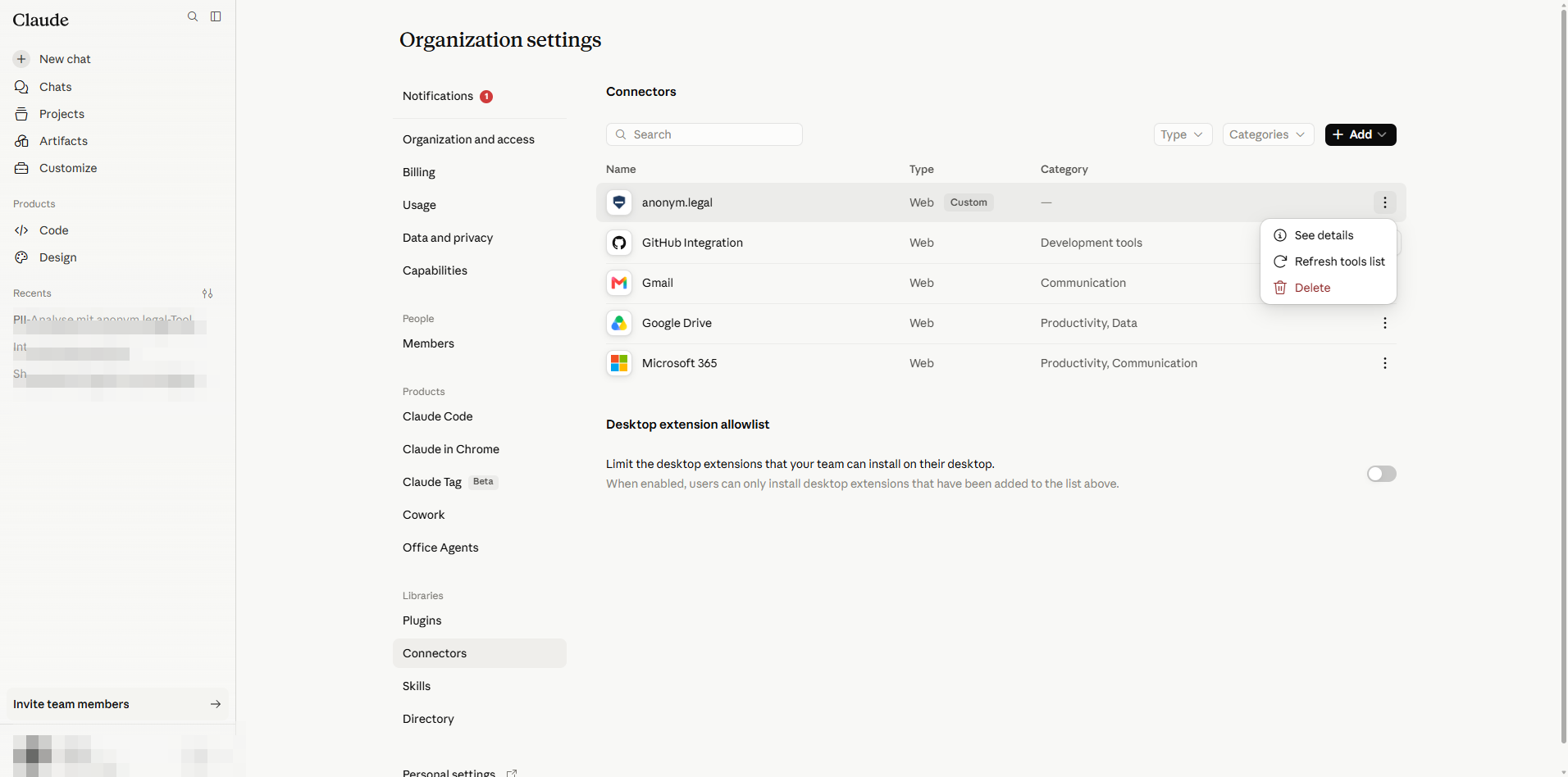
Menú contextual de la fila: Delete elimina el connector per a tota l'organització. - 3
Confirmeu al diàleg Remove anonym.legal for your team?.
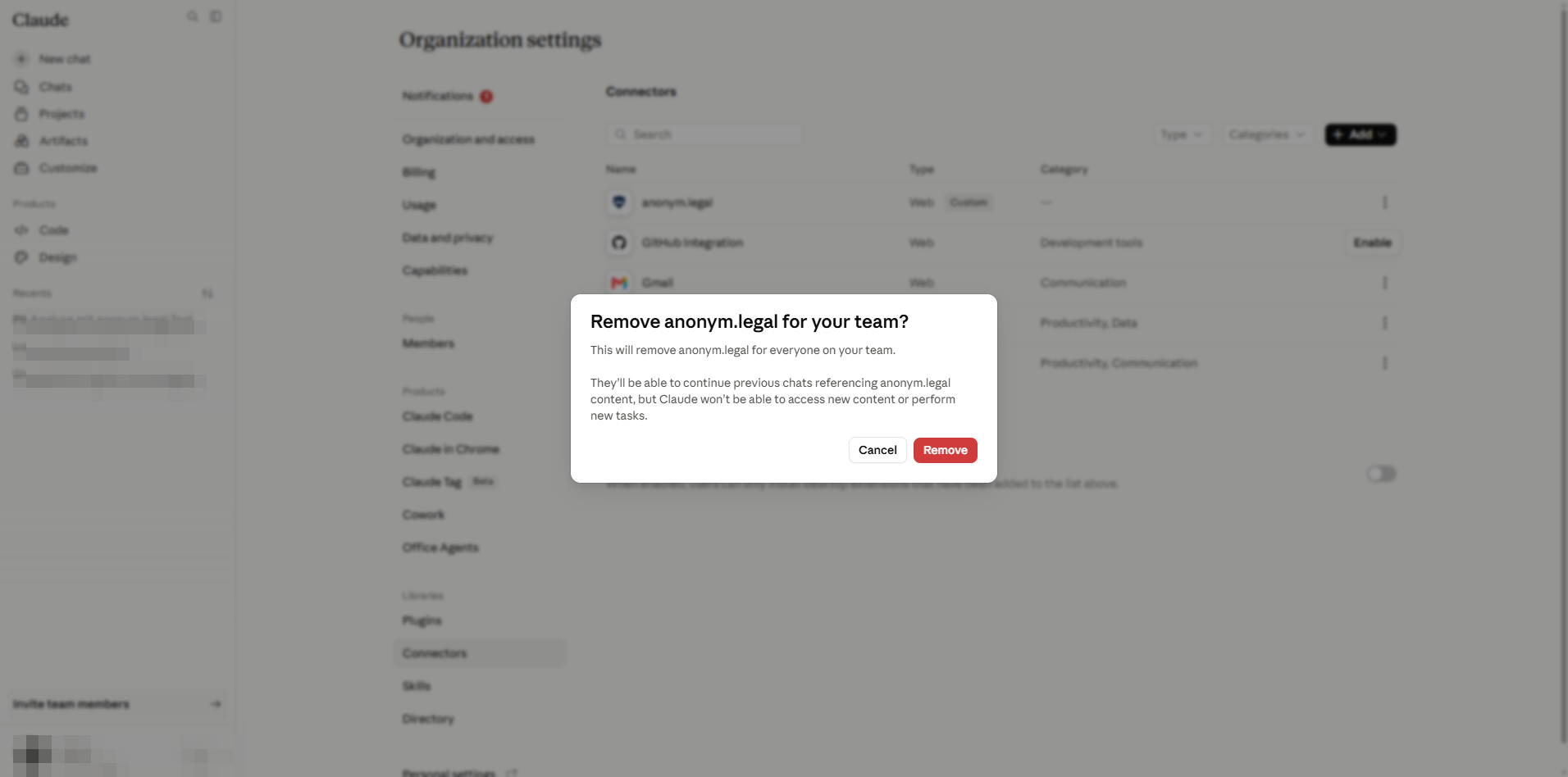
Confirmació d'eliminació. Això suprimeix el registre del servidor per a cada usuari de l'espai de treball. - 4
La taula es refresca sense el connector. Els usuaris que el tenien connectat el veuran desaparèixer de la seva pàgina Customize.
Estat net — segur per tornar a afegir-lo via §2 amb configuració nova.
Part B
Configuració de l'usuari final
Tot el que hi ha a la Part B passa sota /customize/* i està limitat al compte del propi usuari actual. Els administradors no necessiten realitzar aquests passos per altres usuaris.
6. Usuari — connectar i iniciar sessió amb OAuth
Un cop l'administrador ha publicat el connector (Part A), cada usuari l'activa una vegada al seu propi compte.
- 1
Obriu la barra lateral → Customize, o aneu a https://claude.ai/customize/connectors. El tauler Connectors a nivell d'usuari mostra tot allò que l'organització ha publicat.
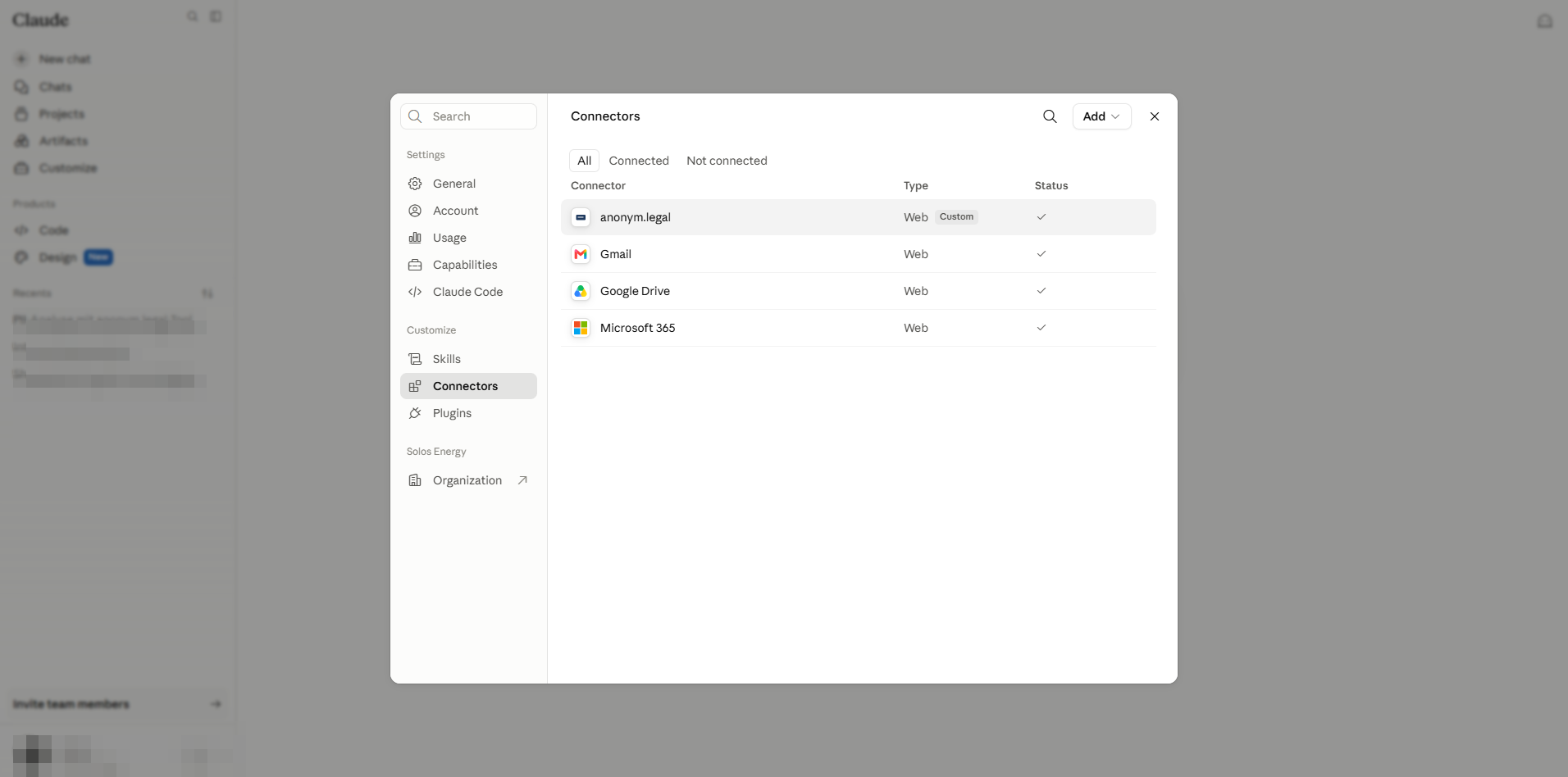
Vista d'usuari. anonym.legal està marcat com a Custom i, en aquest compte, ja està Connected. - 2
Si la fila mostra Get started, feu-hi clic. Una finestra emergent obre la pàgina d'autorització OAuth d'anonym.legal. Inicieu sessió amb les vostres credencials d'anonym.legal, atorgueu accés → la finestra emergent es tanca i la fila passa a Connected. Els tokens es guarden per usuari; l'administrador no veu mai les vostres credencials.
- 3
Feu clic a la fila (o la seva acció View) per obrir el tauler de detall del connector. Aquí podeu copiar la URL del servidor MCP, fer Disconnect o arribar al menú d'accions de la fila.
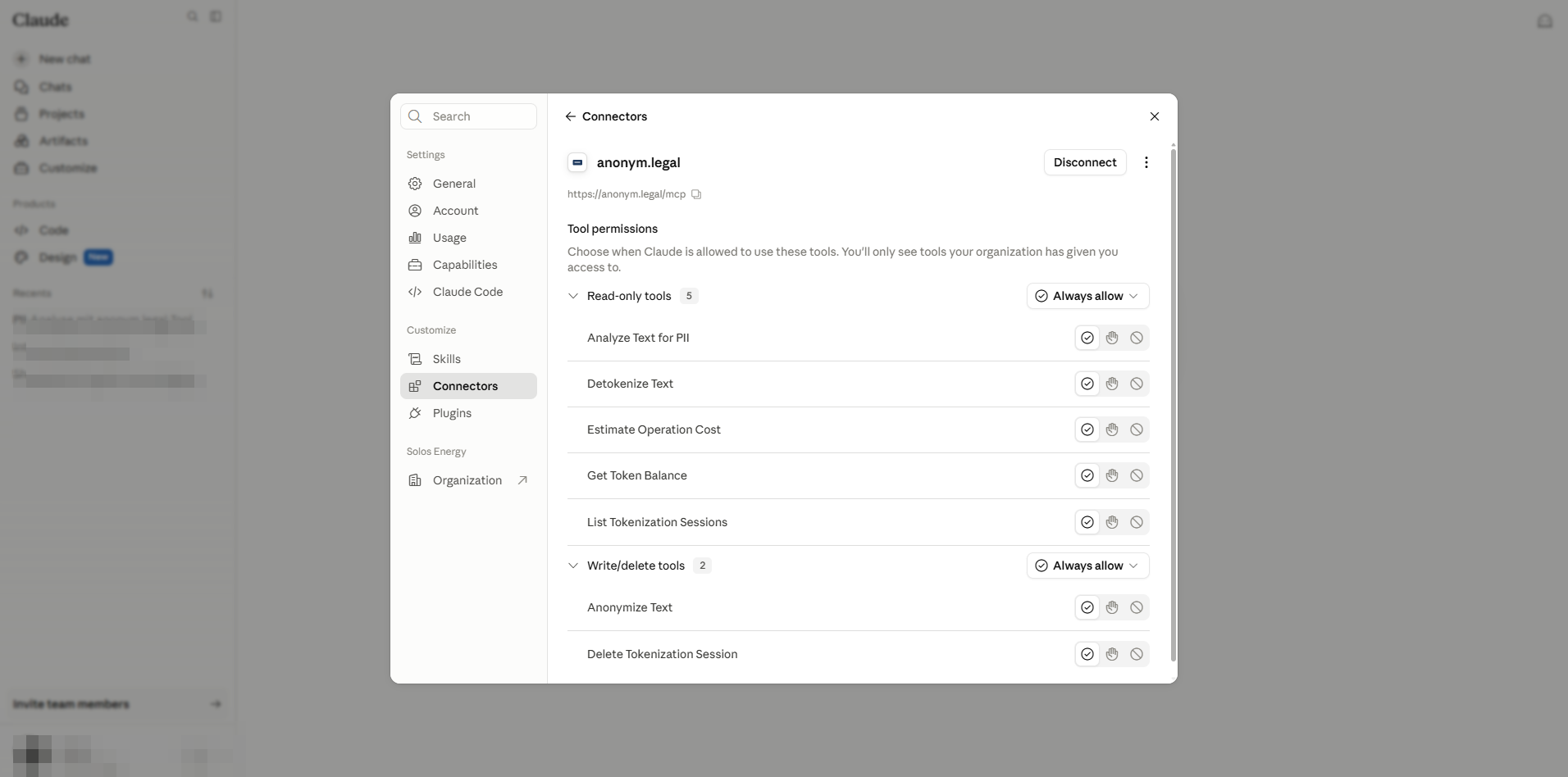
Detall del connector d'usuari: la URL del servidor es pot copiar; la secció de permisos de sota està limitada a aquest usuari. - 4
El menú More options ofereix Refresh tools list (tornar a obtenir el catàleg d'eines del servidor) i Remove (revoca només l'autorització d'aquest usuari — no elimina el connector per a l'espai de treball).
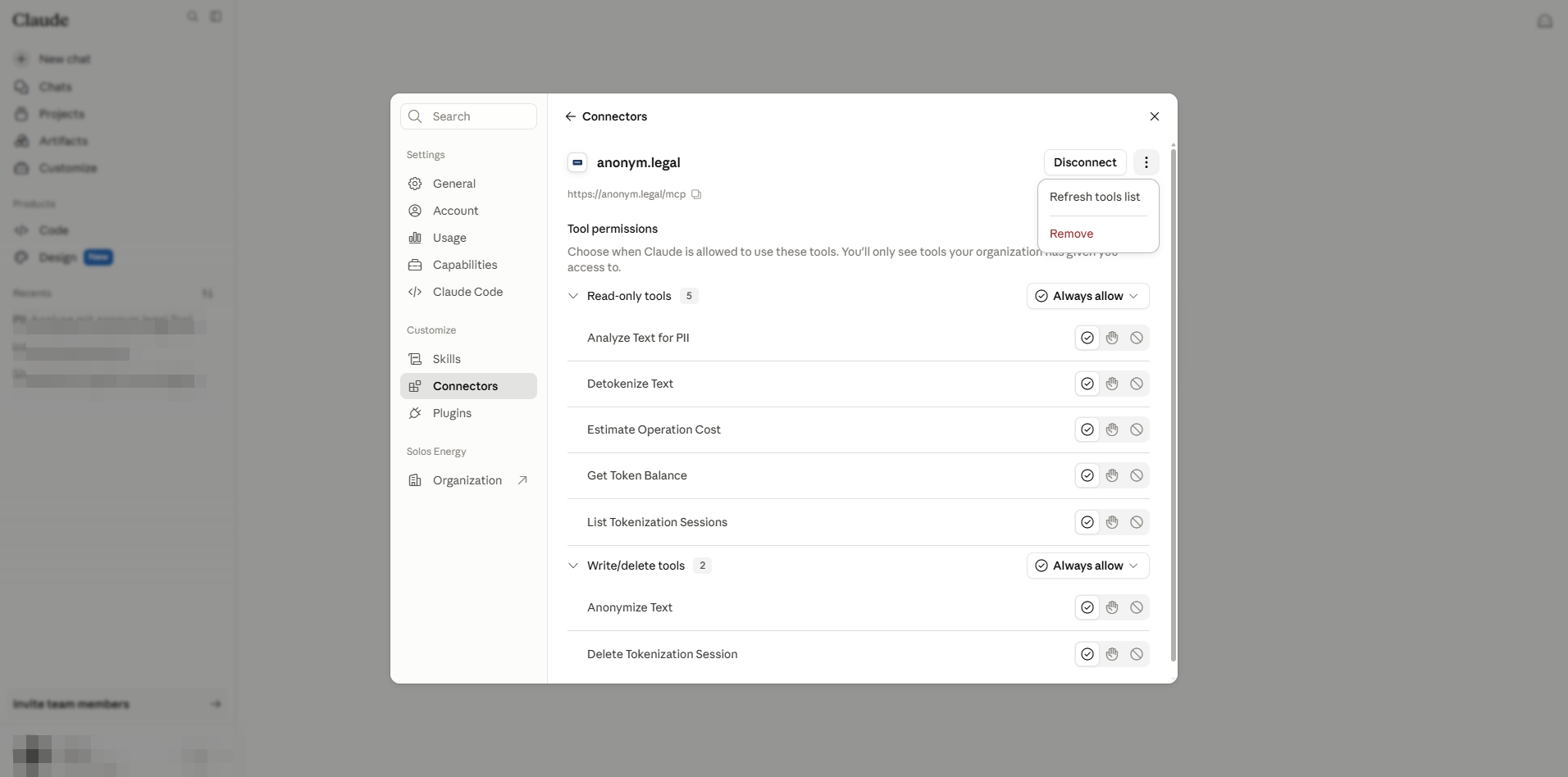
Refresh vs Remove. Només els administradors poden eliminar completament el connector (Part A §5).
7. Usuari — preferència per eina
Cada fila a Tool permissions mostra un radi de tres opcions: Always allow / Needs approval / Blocked. Aquestes tres són les eleccions del propi usuari, limitades pel sostre de l'administrador del §3.
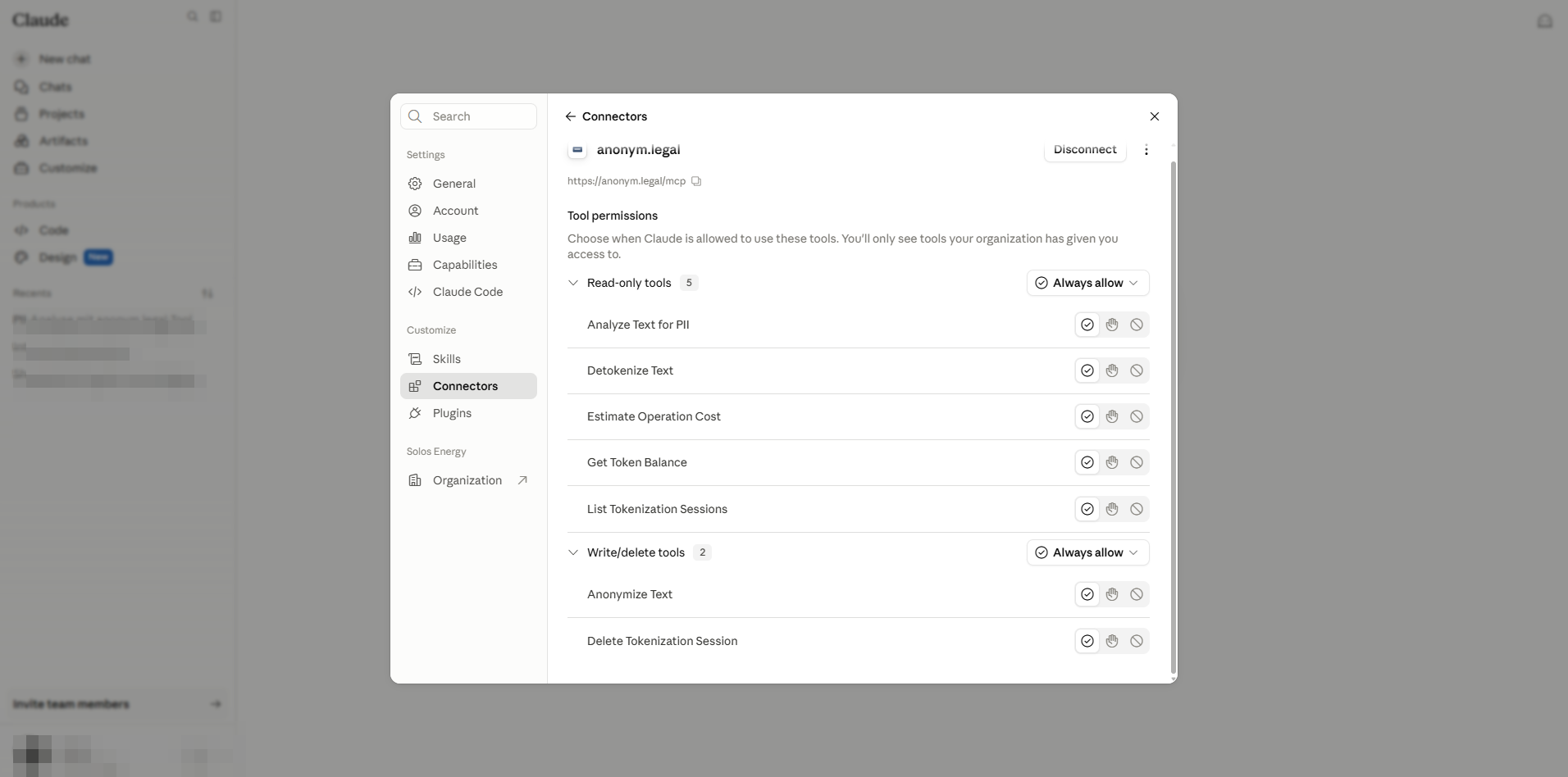
| Elecció de l'usuari | Efecte durant una conversa | Ideal per a |
|---|---|---|
| Always allow | Claude crida l'eina sense preguntar. | Utilitats només de lectura que useu constantment. |
| Needs approval (també anomenat "Pregunta") | Claude demana una confirmació d'un clic cada vegada. | Eines d'escriptura/eliminació; càrregues sensibles. |
| Blocked | L'eina queda amagada a Claude en aquest compte. | Renúncia personal a una eina que el vostre equip sí que fa servir. |
8. Verificar amb una crida a una eina en directe
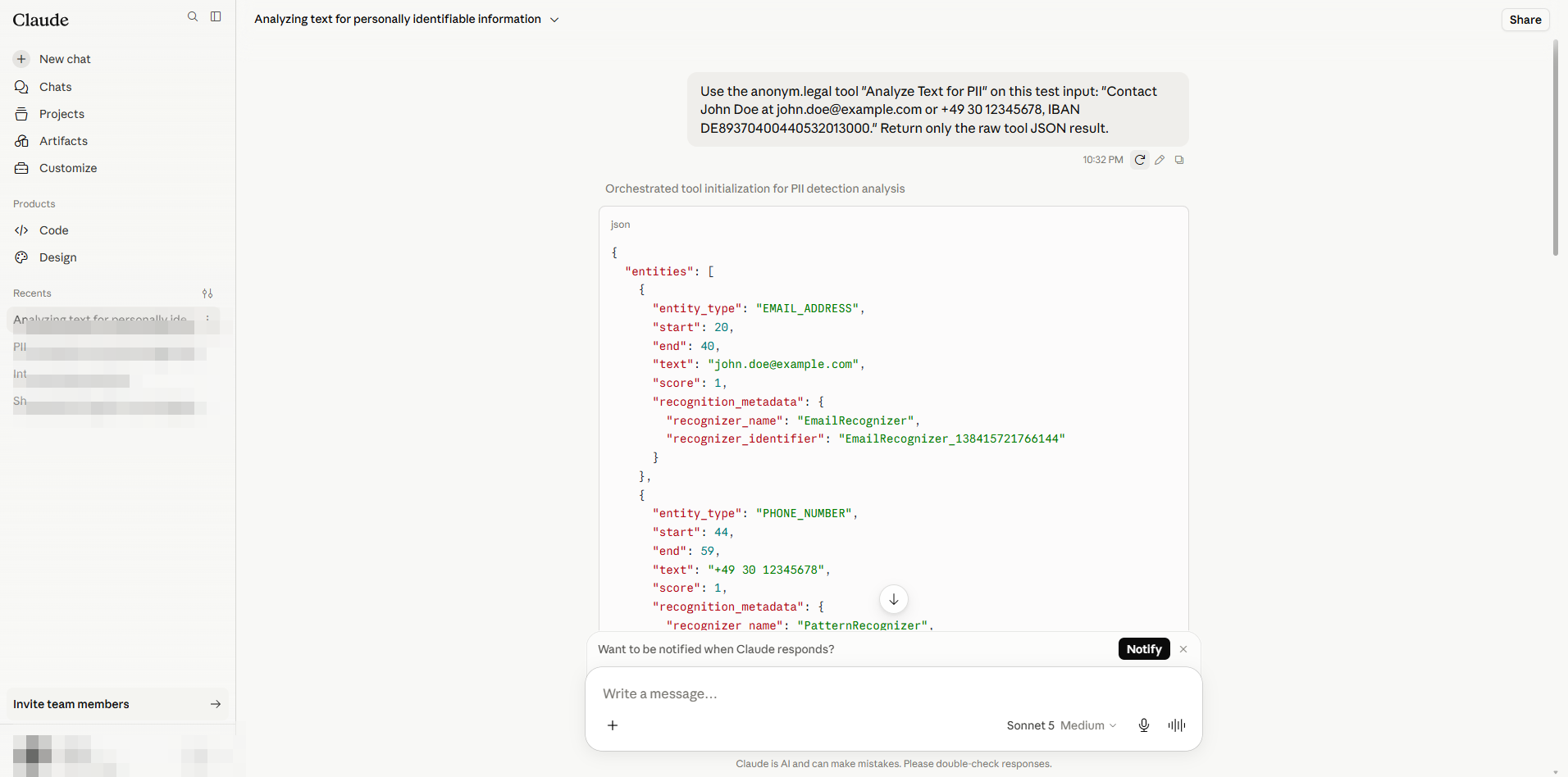
Obriu una conversa nova i indiqueu a Claude que invoqui una eina específica d'anonym.legal. Exemple de prompt utilitzat en aquesta guia:
Use the anonym.legal tool "Analyze Text for PII" on this test input:
"Contact John Doe at john.doe@example.com or +49 30 12345678, IBAN DE89370400440532013000."
Return only the raw tool JSON result.
Claude invoca l'eina i transmet la resposta JSON en streaming. La captura mostra nou entitats detectades, incloses PERSON, EMAIL_ADDRESS, PHONE_NUMBER i IBAN_CODE.
9. Referència: model de permisos i riscos
Admin vs usuari — què controla cada part
| Aspecte | Admin (Part A) | Usuari (Part B) |
|---|---|---|
| Registrar / eliminar el connector per a l'espai de treball | Sí, a /admin-settings/connectors. | No. |
| Establir el sostre per eina (nivell més alt que un usuari pot triar) | Sí. | No. |
| Habilitar el nivell "Always allow" (autorització Cowork) | Sí, a /admin-settings/cowork. | No. |
| Completar l'inici de sessió OAuth amb un compte d'anonym.legal | No (llevat que també ho feu com a usuari final). | Sí, una vegada per compte. |
| Triar preferència per eina dins del sostre | No. | Sí, a /customize/connectors. |
| Revocar la connexió pròpia sense afectar els altres | N/A. | Sí — "Remove" a la fila. |
Matriu de sostre
| Configuració de l'administrador | L'usuari pot triar… | Resultat durant la conversa |
|---|---|---|
| Always allow | Always allow / Needs approval / Blocked | Elecció completa de l'usuari, fins a ús no supervisat. |
| Approval required | Needs approval / Blocked (sense "Always allow") | Claude sempre confirma. |
| Blocked | — | L'eina no apareix mai. |
Individual sign-in vs Managed authorization
Notes de seguretat
- Afegiu únicament connectors de desenvolupadors de confiança. Un servidor MCP maliciós pot injectar prompts a través de les respostes de les eines per enganyar Claude i fer-li executar accions perjudicials ("indirect prompt injection").
- La configuració Default restriction for unconfigured tools és la vostra xarxa de seguretat si el proveïdor llança noves capacitats sense avís — establiu-la a Blocked per requerir una revisió d'administrador cada vegada.
- Cowork "Skip all approvals" desactiva totes les peticions de confirmació en execucions agèntiques. No l'habiliteu per a tenants que tractin dades regulades.
- Roteu les credencials utilitzades per provar connectors abans de promocionar-los a usuaris en producció.
On viu cada configuració
| Configuració | Rol | Ubicació |
|---|---|---|
| Afegir / eliminar el connector de l'organització | Admin | /admin-settings/connectors |
| Sostre per eina | Admin | /admin-settings/connectors → detall del connector |
| Restricció per defecte per a eines no configurades | Admin | Mateix tauler, a dalt de Tool permissions |
| Autorització "Always allow" i Skip approvals | Admin | /admin-settings/cowork |
| Connectar / desconnectar (compte propi) | User | /customize/connectors |
| Preferència per eina (compte propi) | User | /customize/connectors → detall del connector |
| Idioma / configuració regional | User | Menú de perfil de la barra lateral → Language |
Fonts: captura pràctica a claude.ai i documentació del servidor MCP d'anonym.legal. Les icones i la interfície pertanyen a Anthropic i a anonym.legal respectivament.
Preparat per protegir el vostre equip?
Comenceu a anonimitzar abans que arribi a Claude
Creeu un compte d'anonym.legal, connecteu-lo al vostre espai de treball Claude Enterprise i cada missatge es manté lliure de PII per defecte.
Limitations / Important note
- Screenshots are captured from the Claude Enterprise web UI; layout may change without notice.
- This guide is informational, not legal advice. Verify policies with your compliance team.